Feed Configuration
A Data Warehouse request is an order. You ask for a table, it arrives, and the transaction is finished.
A feed is not an order. It is a standing instruction that keeps running, delivering a file every day or every hour, until somebody deliberately stops it. Nobody looks at it again once it works, which is why the settings you choose on the first afternoon tend to be the settings you live with for years.
Two of them are genuinely hard to change later, so it is worth knowing which before you start.
Five groups of settings, and two that matter most
Admin > Data feeds > Create data feed opens a form in five parts.
| Section | What it sets | Change it later? |
|---|---|---|
| Details | Name, tags, description | Easily. Name it for what consumes it. |
| Data formatting | Compression, packaging, manifest, late hits | Yes, but downstream parsers may care |
| Data structure | Report suite and the column list | Adding columns changes the file shape |
| Schedule | Interval, processing delay, start and end | Yes, but history is not re-cut |
| Destination | Cloud account and location, notifications | Yes |
The two that deserve real thought are the interval and the column list. Both feel like small choices while you are clicking and both are awkward to undo once a pipeline depends on them.
Daily, hourly, or every fifteen minutes
Daily is the default and it is right for most work. The file arrives after the day closes and contains everything that happened in it.
Hourly delivers at the end of each hour. It is the right choice when something downstream genuinely acts within the day: an operational dashboard, a near-real-time model, an alerting system. Fifteen minute intervals exist as well, arranged through Adobe rather than switched on yourself.
The trap is choosing hourly because it sounds better. Hourly means twenty-four times as many files, twenty-four times as many things that can fail overnight, and a pipeline that has to handle partial days and stitch them together. If the report built on it is read once each morning, all of that cost buys nothing.
There is also a processing delay setting, which holds the feed back by a number of hours before it runs. That sounds like a disadvantage and is often useful. Hits can arrive late, and a delay gives stragglers time to land before the file is cut.
Late hits, and the window that catches them
Hits do not always arrive on the day they happened. A mobile app collects events offline and sends them when the device reconnects, which can be days later. Server-side calls retry. Timestamped hits carry their own event time rather than the time they were received.
So a feed offers an option for late-arriving hits, with a lookback window that decides how far back Adobe will go to catch them. The window can be set very wide indeed, up to three years.
The decision is about what the receiving system does with a correction. If your pipeline can reprocess a day when new rows arrive for it, switch late hits on and pick a window that matches your real app behaviour. If your pipeline appends and never revisits, late hits will produce duplicates or silently disagree with Adobe's own reporting, and you need to decide which of those you prefer before turning it on rather than after.
Adobe's own reporting keeps updating a day as late hits arrive. A feed file for that day was cut at a moment in time and does not change afterwards unless you have configured it to. So a Workspace number for last Tuesday can grow after the Tuesday file was delivered, and the two will not match. Neither is wrong. If somebody compares a warehouse table built from feeds against a dashboard and finds a small gap on recent days, this is the first thing to check, well before anybody starts looking for a bug in the pipeline.
Choose columns deliberately, then save the template
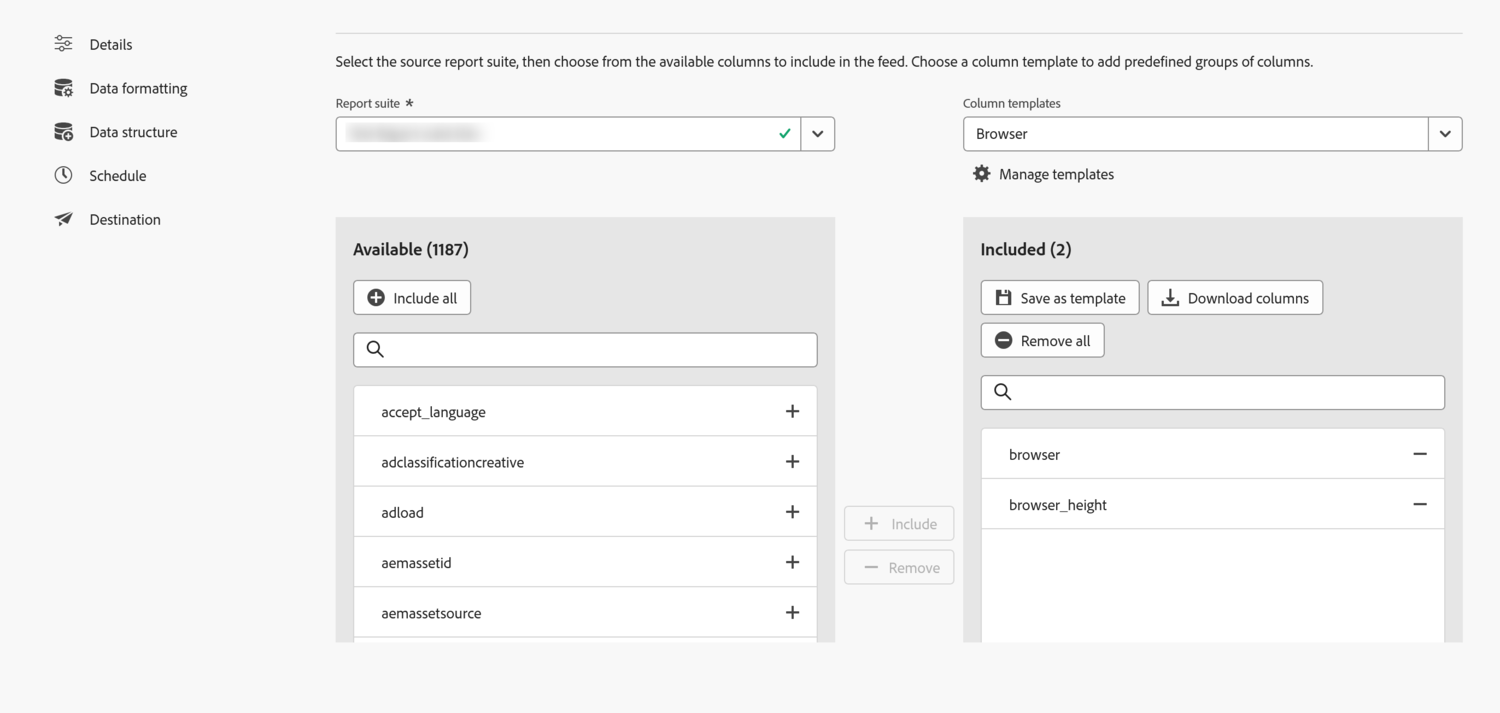
A feed can carry every available column or only the ones you name. There are several hundred to choose from.
The instinct is to take everything, on the same logic as the oversized Data Warehouse request: it is all there, so nobody has to come back. It is a more defensible instinct here, because adding a column later does not backfill it into files already delivered, so anything you leave out is genuinely missing from history.
Against that, every column costs storage and transfer, and a few hundred unnecessary columns across a year of daily files is real money and real processing time. The sensible middle is to take the columns you can name a use for, plus the identity, timing and exclusion columns you will need whatever happens, and then to save that selection as a template so the next feed matches it.
Templates are the part people skip. A company with six feeds built by four people over three years has six different column sets, and every downstream job has to handle its own. Saving and reusing one template costs nothing on the day and prevents that entirely.
Some columns are not interesting in themselves and are needed for almost every calculation you will ever run. The visitor ID pair, the visit number, the visit start time, the hit time, and the exclusion columns that tell you which rows Adobe itself would not count. Leave those out and you cannot reproduce a single standard metric, which you will discover months later when somebody asks why the warehouse disagrees with Workspace. They are cheap, they are the same on every feed, and they belong in the template. The section on processing feeds shows exactly what each of them is doing.
Formatting, packaging and the manifest
The remaining settings are quick, and two of them matter to whoever consumes the file.
Compression is Gzip or Zip. Packaging is either a single file or multiple files split into chunks of about two gigabytes. Splitting is usually right for a busy report suite, because a single enormous file is harder for a pipeline to move and impossible to retry cheaply.
The manifest is the same idea as in Data Warehouse. It lists the file names, sizes, and record counts, and it is delivered last. That ordering is what lets an automated process know the delivery finished rather than guessing. You can also ask for a manifest even on days with no data, which is how a pipeline distinguishes a quiet day from a failed one.
Two smaller options are worth switching on. Replacing operating system strings strips newlines and tabs out of values, which otherwise break a tab separated file in ways that are genuinely painful to debug. Dynamic lookups deliver the carrier, mobile and operating system lookup tables alongside the data.
Follow along: create a feed
This builds a feed end to end. If you are working in a training account, set an end date so it stops on its own.
- Part one, the identity of the feed
-
Go to
Admin›Data feedsand chooseCreate data feed. -
Name it for the system that will read it, and use the description to say who asked for it and why.
Something like
warehouse-daily-hits-prod. The description is the only documentation that travels with the feed. - Part two, the two decisions that stick
-
Under
Schedule, chooseDailyunless something downstream genuinely acts within the day. Add a processing delay of a few hours so late hits have time to land before the file is cut. -
Under
Data structure, pick the report suite and then build your column list. Include the identity, timing and exclusion columns even if nobody has asked for them. - Save the column selection as a template before you move on. The next feed anyone builds should start from this rather than from a blank list.
- Part three, formatting and delivery
-
Under
Data formatting, choose a compression format, switch on the manifest, and switch on replacing operating system strings. Choose multiple files if the suite is busy. Two gigabyte chunks move and retry far better than one huge file. - Decide on late-arriving hits, and set the lookback window to match how your apps actually behave. Only switch this on if the receiving pipeline can reprocess a day it has already loaded.
-
Under
Destination, connect the cloud account, set the location, and put a shared inbox in the notification field. -
Set a start date a few days out, then check the
Jobstab after the first run. Jobs shows each delivery individually, which is where you look when somebody says a file is missing.
There is nothing else to configure. Interval, columns, formatting, destination. The feed now runs on its own until somebody stops it, which is exactly why the name and description were worth the extra minute.
A feed is a standing instruction
Everything about configuring a feed follows from the fact that it keeps running. The name and description are the only documentation that travels with it, the notification address needs to belong to a team, and the settings you pick on day one are the ones somebody inherits.
Daily suits almost everything. Hourly is for something that genuinely acts within the day and costs twenty-four times the operational surface. A processing delay is usually worth having. Late-arriving hits are only safe if whatever reads the file can reprocess a day it has already loaded.
Take the columns you can justify plus the plumbing columns you will always need, and save the selection as a template so the estate does not drift. Switch on the manifest, split large deliveries into chunks, and strip operating system strings so a stray newline cannot break a tab separated file.
What none of that tells you is what is actually inside the delivery when it lands. It is not one file, several of the columns are numeric codes that mean nothing on their own, and the most important convention in the whole format is a four letter prefix. Data Feed Contents takes the delivery apart.
Analytics > Admin > Data feeds, then Create data feed. The form runs through Details, Data formatting, Data structure, Schedule and Destination.
The Jobs tab on the same page lists every individual delivery a feed has produced, with its status. That is the page to open when a file has not arrived, before anybody starts investigating the destination.
This article focuses on the concepts, architecture, and practical guidance behind the topic. For the latest UI walkthroughs and step-by-step implementation instructions, use the links below. They leave this site and open Adobe's own documentation in a new tab.