Collect the data › Adobe Launch (Tags)
Properties
Launch Architecture named the property and left it at "the container everything lives in," which was enough to draw the map. It rewards a closer look, because the property is the unit you will spend most of your working life thinking in.
Stay with the building from Launch Architecture. A building has many homes, and each home holds one family: members of different ages, each busy with their own life, but still a single unit. Yet a home is not only the people in it. It is also their television, their console, their sofa, the objects that make the place theirs. The family plus their things, together, make the home, and that home, sitting inside the building, is your property. Launch is the building. A property is the "everything" of Launch's logical world, and almost nothing in Launch happens outside the boundary of one.
Properties do not interfere with each other
Each property carries its own rules, its own data elements, its own extensions, and its own publishing flow. The boundary is real: two properties do not collide, and neither reaches into the other's business. It is the same easy truth as two neighbours living side by side in that building, sharing a wall and a postcode and nothing else. What you change in one property has no effect on another, which is exactly why a property is the right unit to reason about a single site or app.
One property, one script
A family shares a surname, and the wider society knows them by that single common name. A property works the same way. Inside it sit many moving parts, the rules, the data elements, the extensions, but they are all brought to life by one common script. That script is hosted on your website. When the site loads, the script loads, and when the script loads, it brings the entire property with it: every rule, every data element, every extension, ready to run. It is the moment the invitation goes out and the whole family arrives at once.
In plain technical terms, that script is a small piece of JavaScript that lives in the page's <head>. You do not paste your rules and data elements onto the page one by one; you place this single embed code, and it pulls down the property's runtime library and sets everything running. That runtime is also what creates the _satellite object, described later in this section.
What a property holds
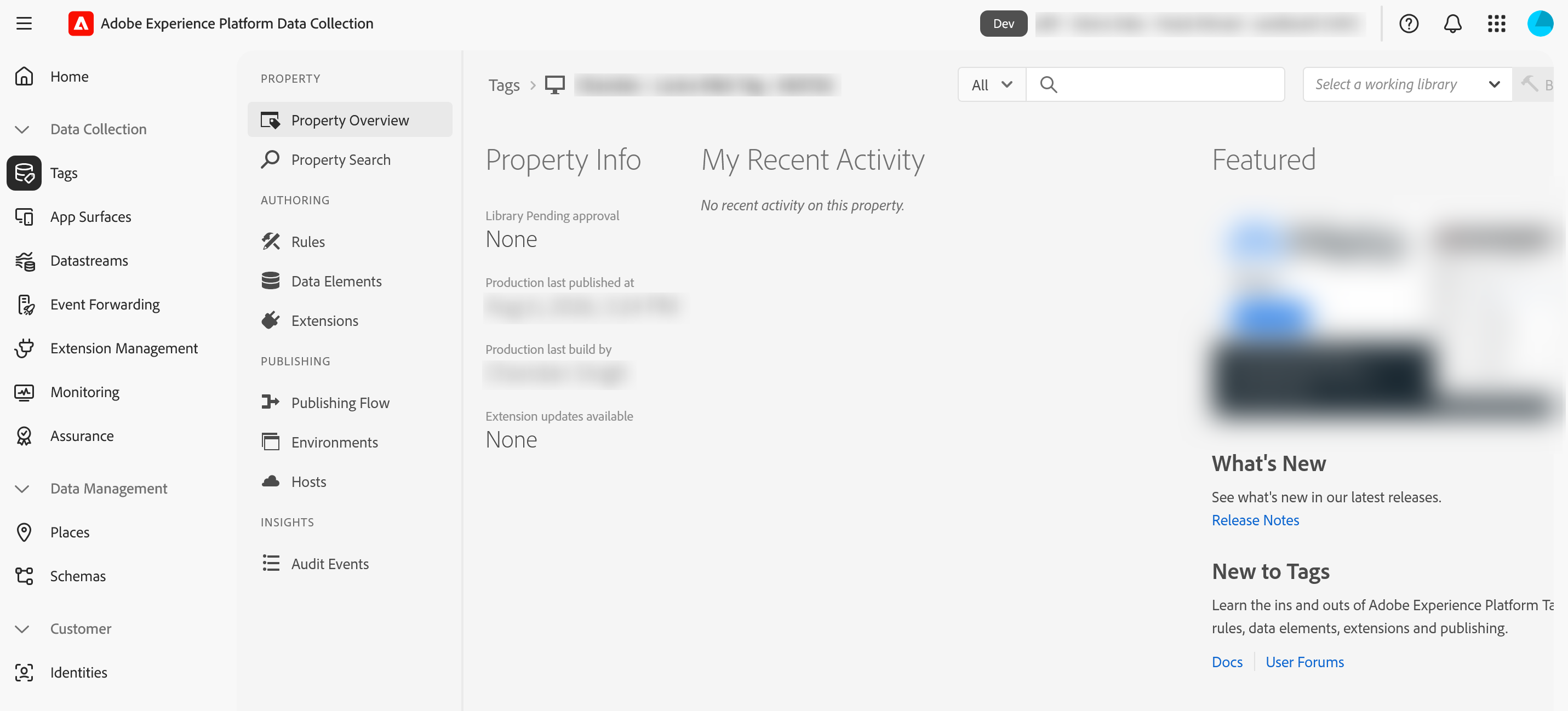
Everything that makes up an implementation lives inside the property and travels together as one sealed unit:
- Rules, the logical sequence of execution: when something happens, do this.
- Data elements, the variables of Launch that those rules draw on.
- Extensions, which inject a piece of functionality onto your site without you touching the site's own code.
- The publishing flow, the controlled path by which all of it ships to your environments.
Each of these has a section of its own in this module. What matters here is the boundary itself: this is the full contents of one property, and none of it reaches into the property next door.
Why property design matters
Because a property is sealed in this way, with its own extensions, rules, data elements, publishing flow, and its own set of permissions, deciding how to split an implementation into properties is one of the more consequential architectural calls you will make. Draw too many and you end up maintaining the same rules and data elements in parallel across them, where they quietly drift out of sync. Draw too few and unrelated teams share one publishing flow and one permission set, and start colliding over each other's work. The structure that holds up is the one that mirrors how the organisation is actually divided, by site, by brand, by team, or by region, so that the people who own a thing are the people allowed to change it. Adobe's own guidance lands in the same place: structure your properties to match how you actually work, not the other way round.
There is no way to merge two properties, and no supported copy that carries rules, data elements, extensions and the relationships between them across intact. Splitting one property into four is an afternoon. Putting four back into one is a rebuild, done by hand, against a live site, with every embed code changing on the way. Draw the boundaries as though you will not get to redraw them, because in practice you will not.
From here on, this module includes hands-on walkthroughs, each shown as a code block with a real sequence of clicks, in order, with the fields filled in. When you reach one, that is your signal to build alongside: open Adobe Experience Platform Data Collection in another tab, because a property you have made yourself teaches more in twenty minutes than any amount of reading.
And if you cannot right now, that is fine. Read it through, then come back when you have access and a spare half hour. The steps are written so that they still work months later, when you have forgotten every word of the prose around them.
Creating a property: website or mobile app
When you create a property, the first thing Launch asks is its platform: web or mobile. This is foundational rather than cosmetic, because it sets the entire toolset you work with. It decides which extensions you start with and can add: a web property opens with the Core extension and the web catalog, while a mobile property opens with Mobile Core and Profile already installed and draws from the mobile catalog. It decides which events your rules can fire on: browser and DOM events like page load and click on the web, application lifecycle events on mobile. And it changes how the property even reaches what it instruments: a web property gives you the <head> embed script, while a mobile property gives you an Environment File ID that the Adobe Experience Platform Mobile SDK is compiled against inside the app. A single mobile property can even manage several iOS and Android apps at once. Pick the platform that matches what you are instrumenting, because it shapes everything you build afterwards.
You set web or mobile when you create the property, and it shapes the entire toolset around it. It is not a switch you flip later, so picking the wrong one effectively means starting the property over. Decide what you are instrumenting before you create it.
- Go to
Data Collection›Tags›New Property. -
Set
NametoClub Web,PlatformtoWeb, andDomainstoclub.example. Platform is decided here, permanently. Domains is the base URL you will deploy to. -
Leave both advanced options off:
Run rule components in sequenceandReturn an empty string for missing data elements. The first makes each condition and action wait for the previous one to finish, which you do not want unless you know you need it. Without the second, a missing data element returnsundefined, which is usually louder and easier to catch. - Save.
What Adobe creates for you the moment you save: three environments (Development, Staging and Production), a default Adobe-managed host on Akamai, and the Core extension — which is why a brand-new property can already build a rule.
Environments and the embed script
Once the property exists, open its Environments and you will find three already waiting for you: development, staging, and production. Each one hands you its own embed script, the JavaScript for the page's <head> described above. Alongside each script, in the same place, you will also find its install instructions, which matters because the script is rarely something you deploy yourself. You pass it, with those instructions, to the development team. The arrangement is straightforward: the development script goes on your non-production environments, the staging script on staging, the production script on production.
Those three are the defaults, but they are not symmetrical in how many of each you can have. Development environments have no limit, while staging and production are each limited to one. In day-to-day practice, most teams lean on just two of the scripts, development and production: production for the live site, and the development script for anything that is not production. That keeps the setup simple, and it is the sensible default.
The reason Adobe lets you create as many development environments as you like is a clever one, and it matters more every year. The scope of a modern implementation has grown enormously, and it is no longer only about analytics; Launch can carry anything you have an extension for. Picture several people or teams working on different changes to the same site at the same time. With a single shared development script they would be tripping over each other constantly. Multiple development environments let each team work in parallel, in its own space, without disturbing anyone else's work in progress.
The _satellite object
Recall what the embed script in the head actually does: it does not carry your rules and data elements, it pulls down the property's runtime library and starts it running. _satellite is your browser-side handle on that running library. The moment the library loads it creates this object, which is simply the property's runtime made reachable from the page itself. The name is a piece of history from Launch Architecture: before Adobe owned it, the tool was Search Discovery's product called Satellite, and even after it became DTM and then Launch, that original name lived on in the base object it created. DTM inherited it, and Launch inherited it again.
It is worth being precise about what _satellite is and is not, because there is a second object on many Adobe pages that people confuse it with: s. The s object belongs to AppMeasurement, the JavaScript library that puts Adobe Analytics on the page. The _satellite object belongs to Launch. They are two different things doing two different jobs. Adobe Analytics is the measurement; AppMeasurement is the library that carries it onto the page; Launch is the container the whole implementation is built and managed in; and _satellite is Launch's own object, the thing that does Launch's work in the browser.
One example of it appeared in What Is a Data Layer, where a direct call fires through _satellite.track('Internal_Search'). But track is only one of several functions _satellite exposes, each with its own job. Here is a working reference for the ones worth knowing.
| Function | What it does |
|---|---|
_satellite.track(id [, detail]) | Fires every Direct Call rule configured with that identifier. The optional detail object is readable inside the rule through %event.detail%. |
_satellite.getVar(name) | Returns the value of a data element with that name, or of a custom variable previously set with setVar. |
_satellite.setVar(name, value) | Sets a custom variable, a temporary value store separate from your defined data elements, which getVar can read back later. |
_satellite.logger.log / warn / error(msg) | Writes a message to the browser console. It appears only when debugging is switched on. |
_satellite.setDebug(true) | Switches that debug logging on for your browser, making logger messages and Launch's own diagnostics visible. |
_satellite.cookie.set / get / remove(...) | Reads and writes cookies. This is the current cookie helper. |
_satellite.getVisitorId() | Returns the Experience Cloud ID (ECID) instance, when the ECID extension is installed on the property. |
_satellite.buildInfo / _satellite.environment | Read-only information: the runtime library's build details, and which environment (development, staging, or production) is currently running. |
A few older functions still work but are deprecated, and you should not write new code with them. Use _satellite.cookie.set / get / remove in place of setCookie, readCookie, and removeCookie, and use _satellite.logger in place of notify. You will also see _satellite._container used in the console to inspect a property's whole configuration; it is handy for debugging, but it is internal and unsupported, so never rely on it in production code.
Two of these tie directly to sections still ahead: track is the entry point to Rules, and getVar and setVar belong with Data Elements, so they return in their own context. The deeper debugging side of _satellite, the monitor hooks that watch rules fire as they happen, belongs with Testing and Debugging.
Create and manage properties at experience.adobe.com → Data Collection → Tags. Open a property and its scripts live under Environments.
This article focuses on the concepts, architecture, and practical guidance behind the topic. For the latest UI walkthroughs and step-by-step implementation instructions, use the links below. They leave this site and open Adobe's own documentation in a new tab.