Collect the data › Adobe Launch (Tags)
Environments
Almost every part of Launch is now covered. One piece is left, referenced in passing throughout and never sat down with: environments. It is easy to understand, and honestly you will not spend much of your working life inside this section. But you cannot skip it, because it underpins everything else, QA, publishing your libraries, aligning to the right report suite, and producing the script you actually place on the website.
Why environments exist
Forget Analytics for a moment, forget websites, forget even the software development lifecycle. For as long as people have made things, they have learned that a craft takes many cycles to get right. A car designer's final shape comes after many prototypes. A sculptor's idol emerges through round after round of trial and error. Nobody did learn farming in a single season; the techniques came over generations. Nobody serious puts the first attempt in front of the world.
Web development works the same way. A developer does not dump changes straight onto the live site the public sees. There is a place to work, to try different designs, different flows, different backends, to make and unmake decisions until the polished, tested thing is ready for production. Adobe Analytics has a different purpose, but technically it is part of your website, so it follows the same discipline. It has a place to work safely and a place that faces the public, and those places are called environments.
An environment is the platform where your work, the rules, data elements, and extensions, actually runs and behaves according to your instructions. Launch gives you three by default: Development, Staging, and Production.
| Environment | How many | What it is for |
|---|---|---|
| Development | Unlimited | Where you build and experiment freely, as many times as you like, and run your QA. |
| Staging | One | A copy of production not exposed to the public, for final tests and a business preview. |
| Production | One | The live site and the live Analytics instance, public-facing, collecting data at scale. |
Development: your free play space
The analytics developer lives in Development. It is the one environment where you can make changes any number of times, run every experiment, and get your hands dirty without anyone questioning you or escalating to your manager. And you can have as many development environments as you want, which matters more than it first appears.
A mature analytics practice is not a solo effort. One team may be working on third-party pixels, another only on the ecommerce flow, another only on content tracking, link clicks, CTAs, downloads. If all of them are forced to share a single development environment, work collides: one person writes a rule, another overwrites it, and you get technical messes and interpersonal friction in equal measure. Separate development environments give each team its own space to build, test, and promote independently, which makes the whole practice faster and cleaner.
The isolation is real, and it is narrower than it looks. Separate environments separate the builds, not the resources. Two teams working in two development environments are still editing one shared pool of rules and data elements, so if both touch the same rule, nothing warns either of them and the collision surfaces at publish rather than at edit. Publishing Workflow covers what that costs and how to avoid it.
Because each library and change is attributable, you can look back later and see who created which library and who edited which rule. The value of that is not catching someone out. It is recovering the context of a past decision, why a thing was done the way it was, when you are staring at it a year later trying to understand it. Treat the history as institutional memory.
Why staging and production are singular
You can have many development environments, but exactly one staging and one production. The reason is the publishing model, not a technical cap on Analytics. Production is the single canonical live build, the one true state of what the public is running. Staging is its single pre-production mirror, the place to do final QA and let business users see what the finished thing will look like before it goes out. Development is where parallel experimentation belongs, so it is unlimited; staging and production each represent one definitive state, so there is one of each.
The embed code, and where the library lives
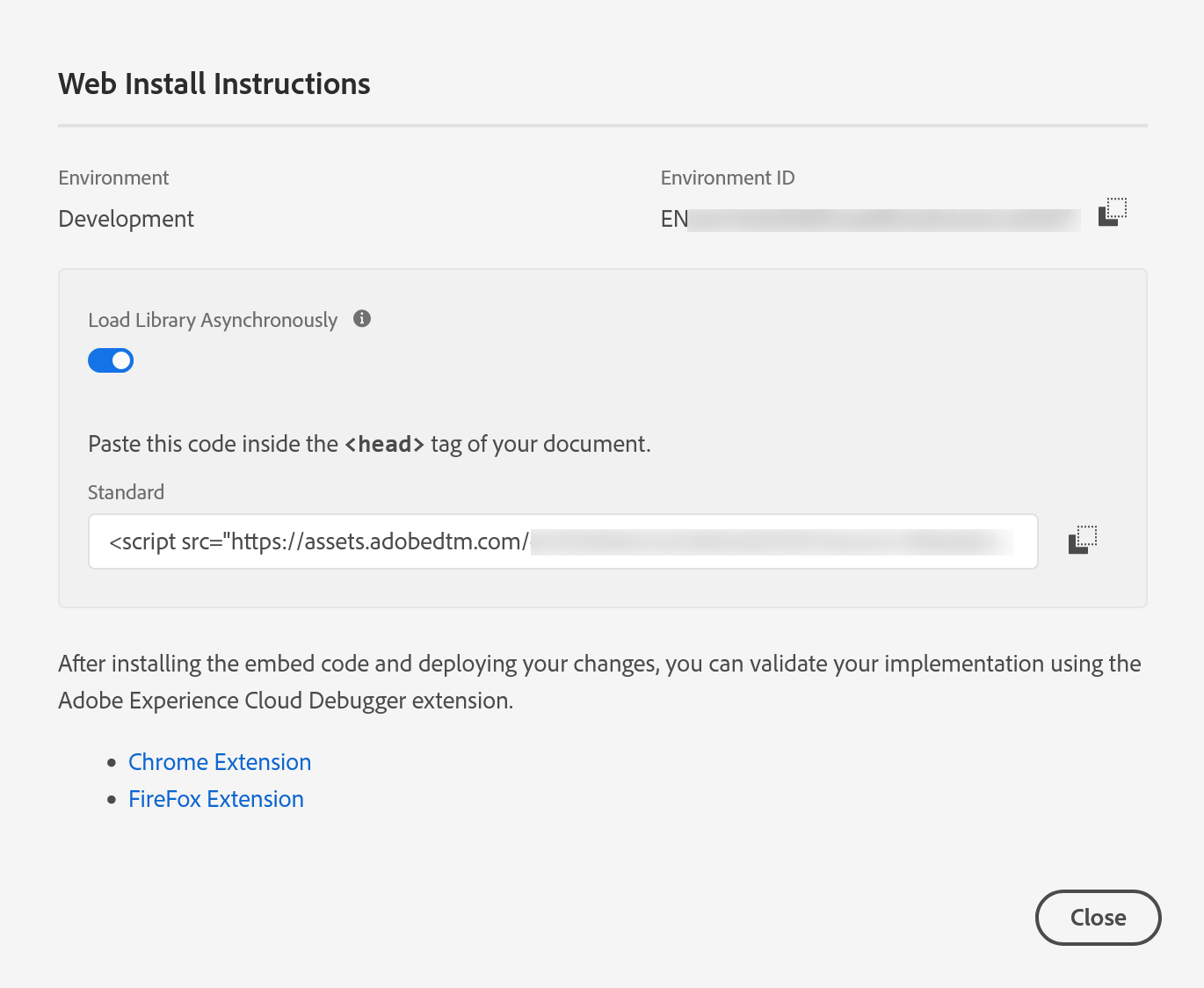
Each environment automatically generates its own embed code. The embed code is a small <script> tag you place in your pages; at runtime it fetches your built library and runs it. You hand the development embed code to the developer for non-production pages, the staging embed for staging, and the production embed for the live site. One important caveat: the embed code does nothing until you have actually created a library and produced a build for that environment.
- Where
Data Collection›Tags›Club Web›Environments- Development
Install— goes on your dev site- Staging
- Staging embed code — goes on your staging site
- Production
- Production embed code — goes on your live site
Three environments, three different embed codes, three different sites. Paste the wrong one and your production traffic quietly reports into dev.
Where does that built library actually live? That is set by the environment's host, and you have two options.
By default every property gets an Adobe-managed host: your build is delivered to a third-party content delivery network (a CDN, via Akamai) that Adobe contracts with. A useful consequence is resilience, because the CDN runs independently, your deployed code keeps working on your site even if the Experience Platform interface itself is down. The alternative is self-hosting, where you push the build to your own servers over SFTP (or pull it down using the environment's archive option). Most implementations are perfectly happy on the Adobe-managed default.
The embed code also comes in two flavours, and the choice has real performance weight. The recommended default is asynchronous: a single script tag that lets the browser keep parsing and rendering the page while the library loads in parallel. The older synchronous form is two script tags, one in the <head> and one just before the closing </body>, and it pauses the page while the library loads and runs. Synchronous loading is exactly what performance tools like Lighthouse and PageSpeed flag, so reach for async unless you have a specific reason not to.
Browser caching is deliberately switched off for development and staging environments, so every visitor refetches the library every time. That is exactly what you want while developing, you always see the latest build, but it is the opposite of what a high-traffic production page needs. Using a development or staging embed code in a production context means no caching at scale, which is both slow and wasteful. Production pages get the production embed, always.
You cannot edit staging or production directly
One last point ties this back to publishing. You do all your real editing in development, because a library in any later stage is a fixed snapshot. If something is wrong in staging, you reject the library back to development, fix it there, and send it through again. If something is wrong in production, you cannot edit it in place either; you create a new corrected library and publish it over the old one, or republish a previous known-good library to roll back. The environments are where builds land; the changes themselves always happen in development.
That is the core machinery of Launch. From the property that contains everything, through the extensions that supply the building blocks, the data elements that hold and shape your values, the rules that assemble the server call, the publishing workflow that ships your work safely, and now the environments and embed codes that carry it to the page, you have the full shape of how an Adobe Analytics implementation is built and run.
One piece of the Launch story is still open, and it is the one that increasingly decides whether an implementation is allowed to run at all: the visitor's consent, and how tag management respects it. Consent and Tag Management closes the module there.
Inside a property, open Environments. Select an environment to view its Install instructions and copy its embed code.
This article focuses on the concepts, architecture, and practical guidance behind the topic. For the latest UI walkthroughs and step-by-step implementation instructions, use the links below. They leave this site and open Adobe's own documentation in a new tab.