Collect the data › Adobe Launch (Tags)
Data Elements
One question is worth asking. Launch, Adobe Analytics, any analytics system at all, what does the whole thing actually revolve around? Not the game, not the media app, not a learning site like this one. It revolves around the analysis of data. And analysis is just looking at how data moves from one point to another, quantifying it, slicing it, holding it up against dimensions and filters. Analysis of what, again? Data. Everything in this guide, every variable, every beacon, every report, has been circling that one word.
How data gets captured and stored is settled. How it gets represented in reports comes later. One piece is still missing: how data gets handled inside Launch on its way to Adobe Analytics. The Analytics variables, the eVars, props, and product string, are covered in Variables: Props, eVars, and Events, and the data layer. What sits between the raw data on the page and those Analytics variables, doing the handling, is the data element. Whatever the data is, a plain string, a number, something pulled off the DOM like a URL or domain, an array like the product string, anything that needs processing before it is sent, the data element is where that work happens.
What a data element is, and how it differs from the data layer
Inside Launch there is a section called Data Elements, where you create new ones and edit existing ones. A data element is, loosely, Launch's version of a variable, but a far more capable one than any programming language gives you for free. And here is the line people most often blur, so it is worth drawing sharply.
The data layer is a JavaScript object that lives on the page, authored by the web development team, something like digitalData.page.pageInfo.name. A data element is not that. A data element is Launch's own reference to a value, an abstraction that sits on top of the source. Adobe describes its own tool exactly this way: tags sits on top of your site and abstracts your data into its own contracts, so it can manipulate that data safely, in isolation from whatever the website itself is doing. Those abstractions are the data elements. So the data layer is the raw material on the page; the data element is Launch's safe, named handle on it. You can build a data element from the data layer, but also from DOM and page information like the URL, path, or referrer, from cookies, from browser storage, and more.
More than a variable: it carries capability
A plain variable in any language only stores a value. You can do arithmetic on it afterwards and put the result somewhere, but the variable itself brings no ability with it; it is just a labelled space in memory. A data element is not just that space. Once a value is in it, the data element carries built-in capability. Through its custom code option you have the entire range of JavaScript available: you can shape the value however you like, make decisions on it, choose between two values, reformat a date from one form to another, or normalise any other format, and hand the finished result to your rules. Rules can manipulate data too, but the standard, recommended practice is to do the data work inside the data element and let the rule concentrate on the logic of assembling the server call. It keeps the structure cleaner and easier to follow.
If you can bypass it, why use it?
Here is an honest admission that makes the point. You can skip data elements entirely. Inside a rule's custom code you can reach straight for a JavaScript variable and assign it to an Analytics variable:
s.prop1 = digitalData.page.pageInfo.name;
One line, and the rule and the data layer have shaken hands and waved goodbye to the data element. So why bother creating one? There are several good answers, and together they are decisive.
It survives missing data. This is the most important reason. Suppose the web developer forgot to populate that data layer node, so digitalData.page.pageInfo does not exist. The shortcut line above does not quietly do nothing. It throws a script error, because you are reading a property of something undefined, and that error can stop the rest of your custom code from running. Worse, depending on how the code is written you can end up sending an unpredictable value: garbage, or the value left over from the previous page. The variable gets populated with something you never intended. To guard against that by hand, you would have to wrap every assignment in an if check. A data element pointed at the same path does this for you. If the path is missing, the data element returns the default value you configured, or simply nothing, instead of throwing. You set a sensible default once, and you never write a defensive check again.
A line like s.prop1 = digitalData.page.pageInfo.name throws a script error the moment any link in that chain is missing, and that error can take the rest of your rule down with it. If you must use custom code, guard every nested path. Better, point a data element at it and let the default value absorb the gap.
It handles the link-tracking plumbing. On a link beacon, the kind Adobe Analytics sends for an action that does not load a new page, Analytics only includes the variables and events named in linkTrackVars and linkTrackEvents. If you set your variables in custom code, you also have to set those two lists by hand, for every variable and every event, and remember to keep them in sync:
s.prop1 = digitalData.page.pageInfo.name;
s.linkTrackVars = "prop1";
s.linkTrackEvents = "";
But when you set variables through the Adobe Analytics extension's Set Variables action, which is fed by data elements, the extension populates linkTrackVars and linkTrackEvents automatically from what you set in the interface. There is nothing for you to write or remember.
It shapes once and reuses everywhere. A data element holds the shaping logic in one place, so the same cleaned, formatted value can be used across many rules and extensions. If the underlying source ever moves, you update the one data element rather than hunting down every rule that referenced it.
It can persist. A plain JavaScript variable lives and dies with its natural scope. A data element lets you choose how long its value sticks around through its storage duration setting: None does not store it at all, Pageview holds it until the next page loads, Session keeps it until the browser tab closes, and Visitor stores it in the browser indefinitely. That sounds like a small convenience, but it is more useful than it looks. Capture a campaign code from the landing page URL once, set it to persist for the visit, and it stays available to attach to later hits without ever reading the URL again.
Storage duration turns a data element into memory. Read a campaign code or a landing entry point from the URL on the first page, set the duration to Session or Visitor, and it stays available to attach to every later hit without re-reading the source. It is one of the quietest, most useful things a data element does that a plain variable cannot.
That same persistence is worth turning over, because a data element that remembers is also a data element that can be wrong quietly. Storage duration puts a value somewhere the reader of a rule cannot see. Nothing in the rule says the value arrived three page views ago, and nothing in the data layer contradicts it, because the data layer is no longer where it is being read from.
Set a campaign code to Visitor and it attaches itself to hits for as long as the browser keeps it, including visits that had nothing to do with that campaign. The report is populated, the values are plausible, and the attribution is wrong. Choose the shortest duration that does the job, and when you do reach for Session or Visitor, say so in the data element's name, because the next person debugging it will be looking at the data layer and finding nothing wrong there.
The default value carries a smaller version of the same problem. A default of an empty string turns a broken source into an empty field, and those are two different diagnoses that now look identical in a report. A visible default like n/a or unknown keeps them apart: it groups in a report, it can be segmented on, and it tells you the element ran and found nothing, rather than leaving you to work out whether it ran at all.
It cleans the data. Two checkboxes, Force lowercase value and Clean text, let you standardise the case and strip out line breaks and leading or trailing spaces before the value is ever stored. Cleaner, normalised values reach Adobe Analytics, which matters a great deal when you later rely on exact matches for reporting and classifications.
Now stack these up. To match by hand what a data element gives you, the safety check, the link-tracking lists, the reuse, the persistence, the trimming, you would be writing a great deal of repetitive custom code, and maintaining it. That is exactly why populating your variables through data elements and the interface is the recommended way to work.
The types of data element
When you create a data element, the first thing you choose is its type, and the type decides how it reaches the value. This is the same supplier relationship set up by Extensions: the Core extension stocks the menu with the general-purpose types below, and other extensions, the Web SDK or the Adobe Client Data Layer for instance, add their own.
| Type | What it captures |
|---|---|
| JavaScript Variable | A value from a JavaScript variable or data layer object, addressed by dot notation, such as digitalData.page.pageInfo.name. |
| Page Info | A part of the current page: URL, hostname, path, protocol, referrer, or title. |
| DOM Attribute | A value or attribute read from an element on the page using a CSS selector. |
| Cookie | The value of a named cookie. |
| Local Storage / Session Storage | The value of a named item in the browser's local or session storage. |
| Constant | A fixed value you type once and reuse, such as an implementation ID. |
| Custom Code | Any value you compute in JavaScript; the editor must return the value to use. |
| Conditional Value | Returns one of two values based on a comparison, an if-then-else without needing a separate rule. |
| Random Number | A random integer between two bounds, often used for cache-busting. |
There are more in the Core set, Merged Objects to deep-merge several objects into one, Visitor Behavior for things like the landing page or days since the last visit, and Runtime Environment for the current environment stage or property name, but the nine above cover the large majority of real work.
- Where
Data Collection›Tags›Club Web›Data Elements›Create New Data Element- Name
Page Name— name it for what it means- Extension
Core- Data Element Type
JavaScript Variable- Path
digitalData.page.pageInfo.pageName- Force lowercase value
- Ticked
- Clean text
- Ticked — trims whitespace and collapses line breaks
- Storage duration
None— the choices are None, Pageview, Session and Visitor- Default Value
- Leave empty, or set
n/afor reporting consistency
Those four options are the capability the raw data layer never had. Once saved, reference the element anywhere in the property as %Page Name%, or from custom code as _satellite.getVar('Page Name').
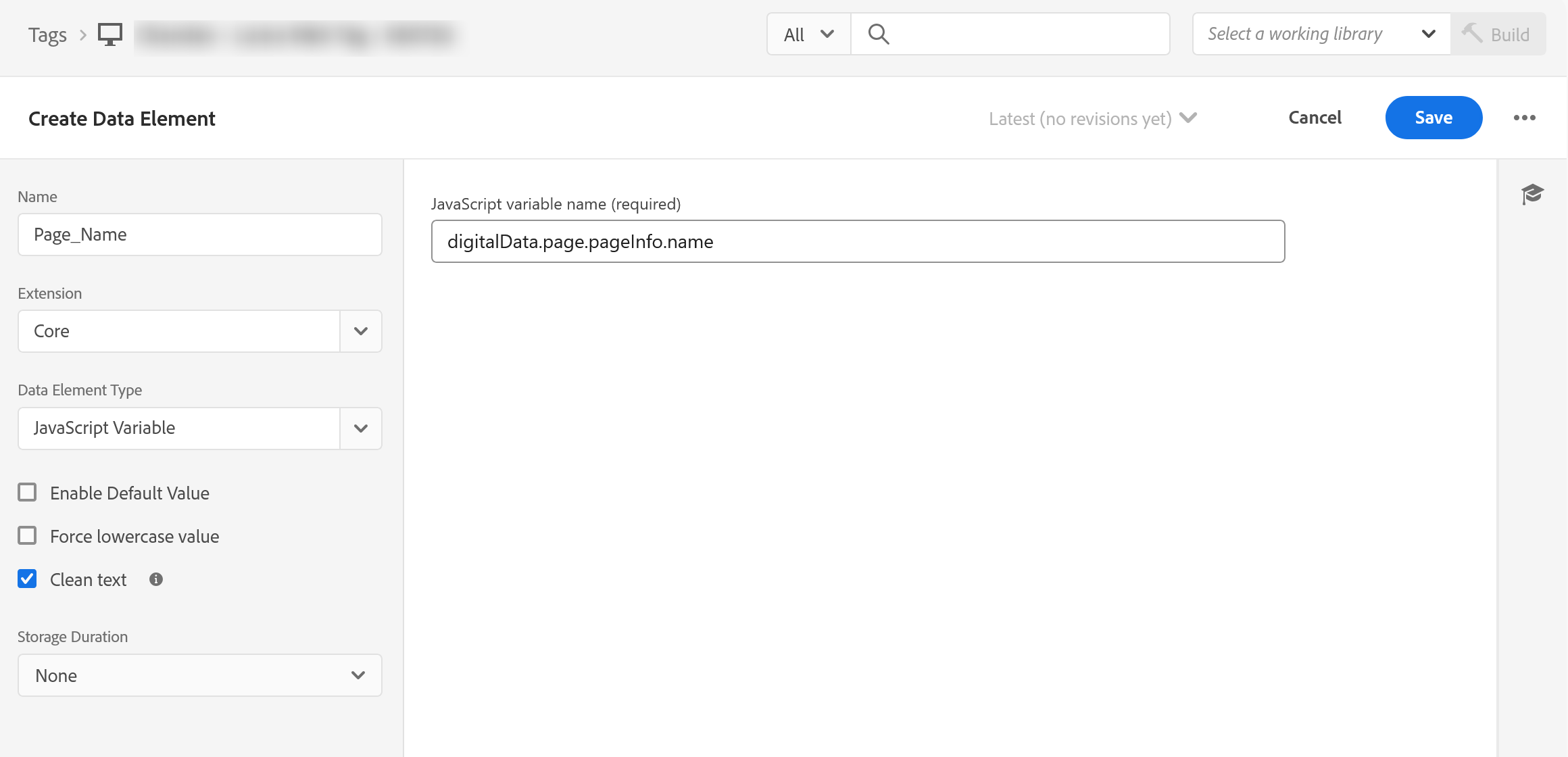
digitalData.page.pageInfo.name. Everything worth looking at is on the left. Enable Default Value, Force lowercase value, Clean text and a Storage Duration. Those four are the whole difference between a data element and a variable, and three of them are sitting unticked. That is the state most data elements on most sites are left in, not because somebody weighed them and declined, but because the fields are below the one people came to fill in.Referencing and checking a data element
Once created, a data element is referenced anywhere in the interface by wrapping its name in percent signs, like %Page Name%, and in code or the console through the _satellite object, with _satellite.getVar('Page Name'). That console call is the quickest way to confirm a data element is returning what you expect on a given page before you trust it in a rule.
That is the data element: a safe, reusable, shapeable handle on your data, and the recommended place to do all your data work before any of it reaches Adobe Analytics. Where those data elements actually get used, and in what order things fire, is the subject of Rules.
Inside a property, open Data Elements, then Add Data Element to create one.
This article focuses on the concepts, architecture, and practical guidance behind the topic. For the latest UI walkthroughs and step-by-step implementation instructions, use the links below. They leave this site and open Adobe's own documentation in a new tab.