Start with the foundations › Adobe Analytics Fundamentals
Account Structure and Access
Every organization that buys Adobe products is, from Adobe's side, an account. If your company runs abc.com and contracts with Adobe to implement Analytics, you become an account in Adobe's system under a name like ABC Enterprises, and that account name is what you see when you log in to Adobe Analytics or any other product you own. Under that single umbrella sit your report suites and your products, and remember that Adobe Analytics is itself a bundle of capabilities, Data Warehouse, Activity Map, the APIs, and more.
Which raises the questions this section is really about. Who gets to use what? Who can see which data? Who can customize or develop? Who approves changes, and who publishes them to production? These are sensitive decisions, and here is the thing worth saying plainly: this is not really a technical topic. You are not here to learn which button grants a permission. It is a management and governance topic, and it is where an organization's discipline shows. The teams that handle access well tend to do well; the ones that treat it as an afterthought run into trouble later.
You will not feel its weight on day one, when you have a single user and everything is simple. But as your practice matures around Adobe Analytics, the importance climbs, and the things you failed to manage early become genuinely hard to untangle. So the recommendation is simple: bring this discipline into the system from day one, even with one user. It is far easier to grow a clean structure than to repair a messy one.
Underneath the governance question is one mechanical idea, asked over and over: who can do what, and where? Adobe answers it with a small hierarchy, and one piece of it does almost all the real work.
The piece that does the work: the Product Profile
The Organization is your company's top-level Adobe account, and the User is a person. But permissions don't actually live on either of them. They live on the Product Profile sitting in the middle, and that's the idea most people miss at first.
Think of a Product Profile as a keycard with a specific set of doors switched on: these report suites, these tools, these dimensions and metrics. You don't program access into each employee individually. You create cards for roles, "Marketing Analyst," "Implementation Developer," "Read-only Executive," and hand each person the right card. Assign a user to a profile and they inherit everything that profile allows. Add a door to the card, and every single person holding it gets that access at once. Remove someone and their access to those things is gone in one move. That inheritance is what makes access manageable at scale instead of a per-person nightmare.
You can hand the card to a person directly, but the way it scales is through user groups. Assign a profile to a group, then drop people into the group, and they pick up the group's access automatically. New analyst joins the team? Add them to the "Marketing Analysts" group and they are set up in one step, no profile-by-profile fiddling.
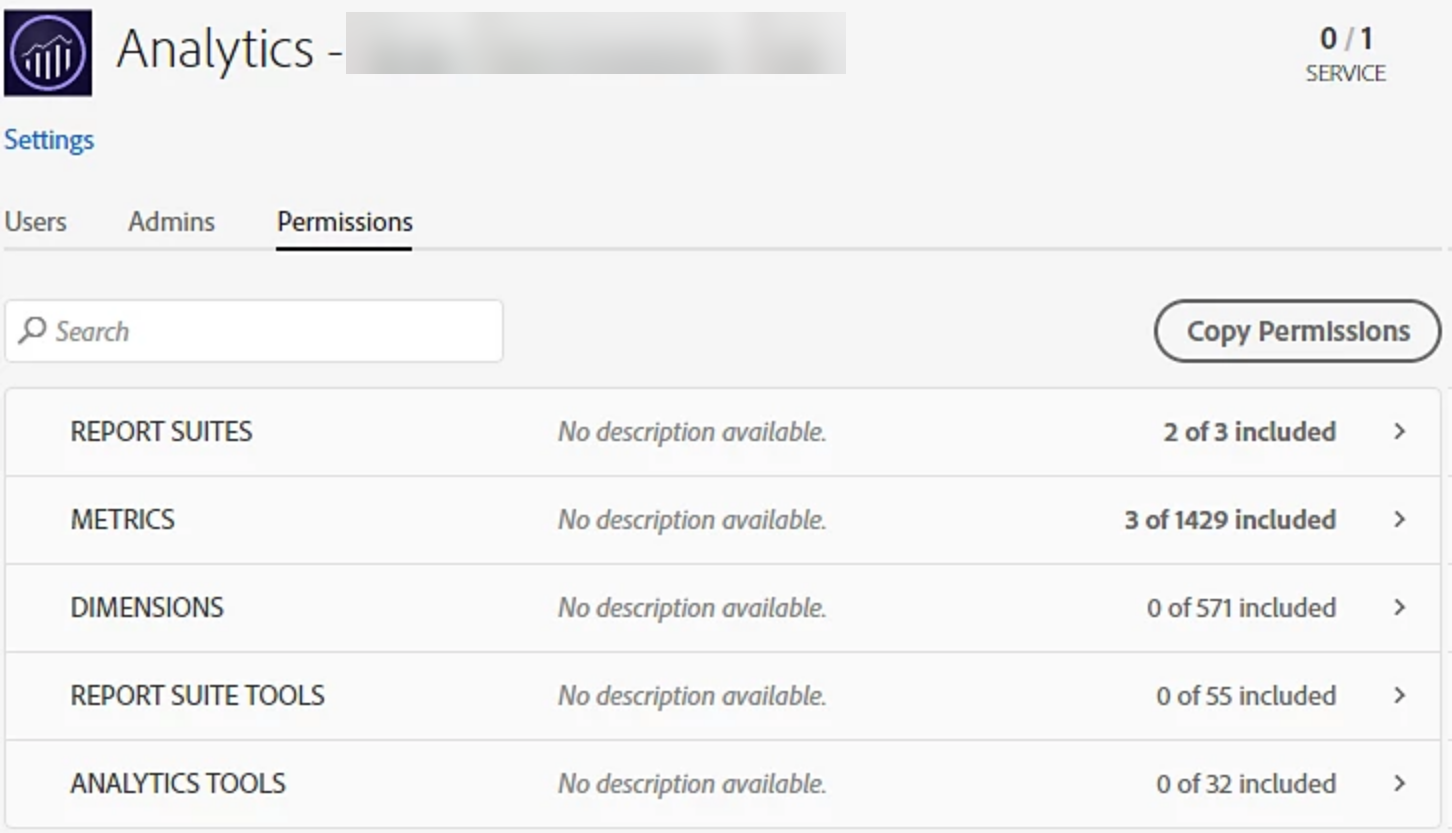
What a profile actually controls
- Report Suite Access (the "where"): which report suites a user can even see. This is the single most common cause of "I can't find that data", the person simply isn't on a profile that includes that suite.
- Analytics Tools (the "what they can do"): access to Workspace, Activity Map, the APIs, and so on.
- Report Suite Tools (the "what they can change"): the powerful functions, processing rules, marketing channels, classifications, plus Data Warehouse and Data Feeds. Guard these.
- Metrics and Dimensions: granular, component-level control for when whole-suite access is too blunt, you can expose or withhold specific dimensions and metrics per profile.
This is also where the tag world's publishing rights live. When you set up tags, separate rights, Develop, Approve, and Publish, govern who can build changes versus who can push them live to production, and they are granted right here, through the Data Collection product profile in the same Admin Console. You will learn how that publishing flow actually works in the publishing workflow section of Adobe Launch; for now, just note that this access model is what enforces it, so the person who builds need not be the person who ships.
A frequent point of confusion: user and permission management is not done inside the Adobe Analytics interface. It happens in the separate Adobe Admin Console (adminconsole.adobe.com), which governs all your Adobe products at once. Analytics is where you analyze; the Admin Console is where you decide who's allowed to.
Maintain a simple document of which users hold which access, and when it was granted. The Admin Console keeps logs, but reconstructing the picture from them after the fact is slow and painful. A living record, who your admins are, who can reach which report suite, who can publish, gives you an at-a-glance view when someone leaves, when something breaks, or when an audit lands on your desk.
"Least privilege" is the right principle, but it fails in two directions. Over-provision and everyone becomes an admin: now no one knows who changed a processing rule and broke last week's data. Over-correct and you get profile sprawl: forty overlapping profiles, half of them named "test", that no one can audit. The fix is the same in both cases, design profiles around roles, not individuals, and review them periodically. A handful of clean, role-based cards beats a drawer full of one-offs.
This section is the "who and where" of access. The "where", report suites themselves, gets its own full treatment in Report Suites, and access design as part of a wider governance practice returns in Solution Design Reference.
That closes the module. You know what Adobe Analytics is, what it stands alongside, the words it expects you to already have, where it genuinely wins and where it does not, and who is allowed through the door.
What you do not have yet is anywhere to put anything. Every hit Adobe collects has to land somewhere, and that somewhere is a report suite. It is the first real architectural decision of any implementation, it is made early, and a surprising amount of it cannot be undone. Report Suites is where that decision gets made.
User Management: adminconsole.adobe.com → Products → Adobe Analytics
Product Profiles: Admin Console → Products → Adobe Analytics → Product Profiles
Permissions: Admin Console → Product Profile → Permissions
This article focuses on the concepts, architecture, and practical guidance behind the topic. For the latest UI walkthroughs and step-by-step implementation instructions, use the links below. They leave this site and open Adobe's own documentation in a new tab.