Shape the data › Classifications
Classification Sets
You have a key worth classifying. Now the classifications need somewhere to live.
That somewhere is a classification set, and it is the screen where this feature stops being a concept and becomes something you build. Everything from here on is hands-on. Open Adobe Analytics alongside this section and follow it, because the rest of the module assumes the set exists.
Why sets exist at all
To understand the design, it helps to know what it replaced, because sets were not built to look nicer. They were built to kill a specific and genuinely painful problem.
In the older system, classifying a single product SKU took three separate interfaces and three different mental models. You went into report suite settings to create the classification columns. You went into the Rule Builder to write the rules. You went into the Importer to upload the files. Three screens, none of which knew about the others.
And then the real cost arrived. All of it was scoped to one report suite. Twelve report suites meant doing the whole thing twelve times, by hand, and keeping twelve copies in agreement forever.
Look at the left column and notice that creating the classification columns was a report suite setting. That step is gone. In a classification set, the columns are created inside the set itself, on the Schema tab. If you have worked with classifications before, this is the habit to unlearn first, because you will go looking for a screen that no longer has a job.
What a set actually contains
A classification set is three things bolted together, and holding them apart in your head makes everything else easy.
Subscriptions say where. Schema says what. Rules say how, automatically. This section builds the first two. The third has a section of its own.
Before you open anything
One prerequisite, and it catches people on their first attempt.
The key dimension has to exist already. When you build a subscription, Adobe offers you a dropdown of dimensions in that report suite, and an eVar that was never enabled simply will not be in the list. There is nothing to fix inside the classification interface if that happens, because the problem is upstream, in report suite settings, where the variable is enabled and named.
You also need the right access. Classification sets live under Components, and reaching them requires either a product admin account or membership of a product profile carrying the Report Suite Tools > Classifications permission. If the menu item is not there, that is why.
Step one: create the set
Go to Components in the top menu bar, then Classification sets. Select the Classification sets tab, then New.
The Add New Classification Set dialog asks for everything at once. Here is the club's set, filled in.
- Where
Components›Classification sets›Classification setstab ›New- Name
Club Member Attributes- Description
- CRM attributes classified against the member User ID
- Type
Primary- Notify on failure
ON, toanalytics@club.exampleandcrm-ops@club.example- Notify on success
OFF- Subscriptions
club-prod— key dimensioneVar12(User ID)club-dev— key dimensioneVar12(User ID)
- Finally
Save
Four of those fields deserve more than a glance.
The Type field, and the idea hiding inside it
Primary is what you want almost every time. A primary set classifies a dimension that Adobe Analytics actually collected: a User ID, a product SKU, a tracking code, an internal search term. The key is real data that arrived on a hit.
Lookup is stranger and more interesting. A lookup set classifies a classification, which sounds like a riddle until you see the case it solves.
Picture a product catalog where the SKU carries a primary classification called Color Code, and the color code is C-114. Useful to a system, useless to a marketer. You could of course put the color name straight into the primary set, but then every SKU in that color repeats the name, and the day marketing renames the color you are editing thousands of rows.
Instead you attach a lookup: a small second set whose key is the color code and whose column is the color name. One row per color, not one row per product. Rename the color once and every product inherits it.
Lookups are how you avoid repeating yourself, and they are the reason classification data does not have to be flat. Reach for one whenever an attribute has attributes of its own.
Job notifications, which you should turn on
The dialog offers to email you when a classification job fails or succeeds, and it is tempting to skip past it. Do not.
Classifications fail quietly. A rejected upload does not break a report, does not raise an alarm, and does not empty a dimension. Yesterday's data simply keeps showing while today's never arrives, and the report looks completely normal. Failure notification is the only thing standing between a broken nightly import and a stakeholder discovering it three weeks later. Success notification, meanwhile, produces a daily email that everyone learns to ignore within a fortnight, which then teaches your team to ignore the failure ones too.
Subscriptions, and the constraint nobody expects
A subscription is a pairing: one report suite, plus the one dimension in it that holds the key. Add as many pairs as you need, and the notation is deliberately loose about matching names. The club uses eVar12 in both suites, but a set can happily subscribe rs-a with Product ID and rs-b with Product SKU, because what matters is that both dimensions hold the same kind of value, not that they carry the same variable number.
That flexibility is exactly what kills the twelve-copies problem. One product set, subscribed everywhere, maintained once.
Then you will hit the rule that stops people cold.
Try to subscribe a report suite and key dimension combination that is already subscribed to another classification set, and Adobe blocks it with a red message. Your only choices are to open the existing set and add your classifications to its schema, or to pick a different combination. There is no way to have two primary sets both classifying eVar12 in club-prod. This is not a limit you can design around later, so it shapes how you plan sets from the beginning: one set per key, not one set per project. If the marketing team wants campaign attributes and the finance team wants campaign margins, both are columns in the same tracking code set. They do not get a set each.
Save the set. The container exists. It is entirely empty.
Step two: define the schema
Reopen the set by selecting its name in the manager, and go to the Schema tab. This is where the classification columns get created, and it is the step that used to live in report suite settings.
Select Add, type a name, select Add again. Repeat for each column.
Before you start: open Components › Classification sets › Club Member Attributes › Schema tab.
- Choose
Addand set Classification Name toAge Band. - Choose
Addagain forGender. - Choose
Addagain forMembership Tier. - Choose
Addagain forJoin Year.
Four classifications, and the identity names Adobe derives from them are what your import file's column headers must match.
| Classification name | Identity name | Classified by |
|---|---|---|
| Age Band | age_band | — |
| Gender | gender | — |
| Membership Tier | membership_tier | — |
| Join Year | join_year | — |
Each of those names becomes a real, reportable dimension in Analysis Workspace, sitting under the parent variable. Four names typed into a dialog, and the club can now report Hall Bookings by Membership Tier. Nothing was deployed. No developer was involved.
A column can itself be classified
One more thing belongs in the schema, and it is easy to miss because nothing on the screen advertises it. A classification column can be classified in turn. Adobe calls this a subclassification, and it is written with a caret, which is why the caret is a reserved character in a classification name.
The reason to reach for one is repetition. Suppose two hundred tracking codes belong to twelve campaigns, and those twelve campaigns belong to four business units. You could hang Business Unit off every tracking code, which means maintaining the same four answers two hundred times and re-typing all of them the day the company reorganises. Or you classify tracking code into Campaign, and classify Campaign into Business Unit. The reorganisation is then four rows.
The rule of thumb is to attach an attribute at the level it actually belongs to. Business Unit is a fact about a campaign, not a fact about a tracking code, and a schema that says so stays correct with far less work. It carries one consequence worth knowing before you build it: a subclassification cannot exist without its parent, so deleting a classification value takes everything hanging beneath it, which Importing Classification Data returns to.
Classification Name and Identity Name are not the same thing
Look again at that second column, because it is doing something you did not ask it to do and cannot undo.
| Classification Name | Identity Name | |
|---|---|---|
| Who creates it | You, by typing it | Adobe, generated from the first name you typed |
| What it does | The label people see in reports | Persists the classification, and IDs the reportable dimension |
| Can it change | Yes. Rename it whenever you like. | Never. It is read-only, permanently. |
So the very first name you type is the name that survives. Rename Age Band to Member Age Group next year and the reports will say Member Age Group, but underneath, forever, it is still age_band. That identity name is what the API returns, what integrations bind to, and what anybody debugging your implementation will actually see.
The five seconds you spend getting the first name right are the only five seconds you get. Name columns the way you would name a variable: clear, consistent, and free of the project code or team name that will be meaningless in two years. Campaign Owner, not Q3 Owner Field v2.
Attaching a lookup
If a column needs attributes of its own, this is where the lookup set built earlier gets connected.
Select the classification in the schema list, and the action bar appears with Add Lookup, Remove Lookup, Rename, and Delete. Choose Add Lookup, pick the lookup classification from the dropdown, and select Add. The Classified by column now shows the link, and the color code has become a color name everywhere it appears.
The rest of the toolbar
The Schema tab carries five more buttons across the top. You will use all of them, but only two belong to this section.
| Button | What it does | Where it is covered |
|---|---|---|
| Add | Creates a classification column | Here. You just used it. |
| Template | Downloads a correctly structured empty file, matching your schema | Importing Classification Data |
| Upload | Loads a data file into the schema | Importing Classification Data |
| Download | Exports the classification data currently held, for checking | Importing Classification Data, and Troubleshooting and Maintenance |
| Automate | Points the set at a cloud location so files ingest on their own | Importing Classification Data |
| Job History | Shows every job run against this set, and whether it worked | Troubleshooting and Maintenance |
Notice that the schema and the data are separate acts. Defining a column does not populate it. A brand new set with a perfect schema classifies precisely nothing until something puts values in, which is the whole job of Importing Classification Data and Classification Rule Builder.
Consolidations, and the mess migration leaves behind
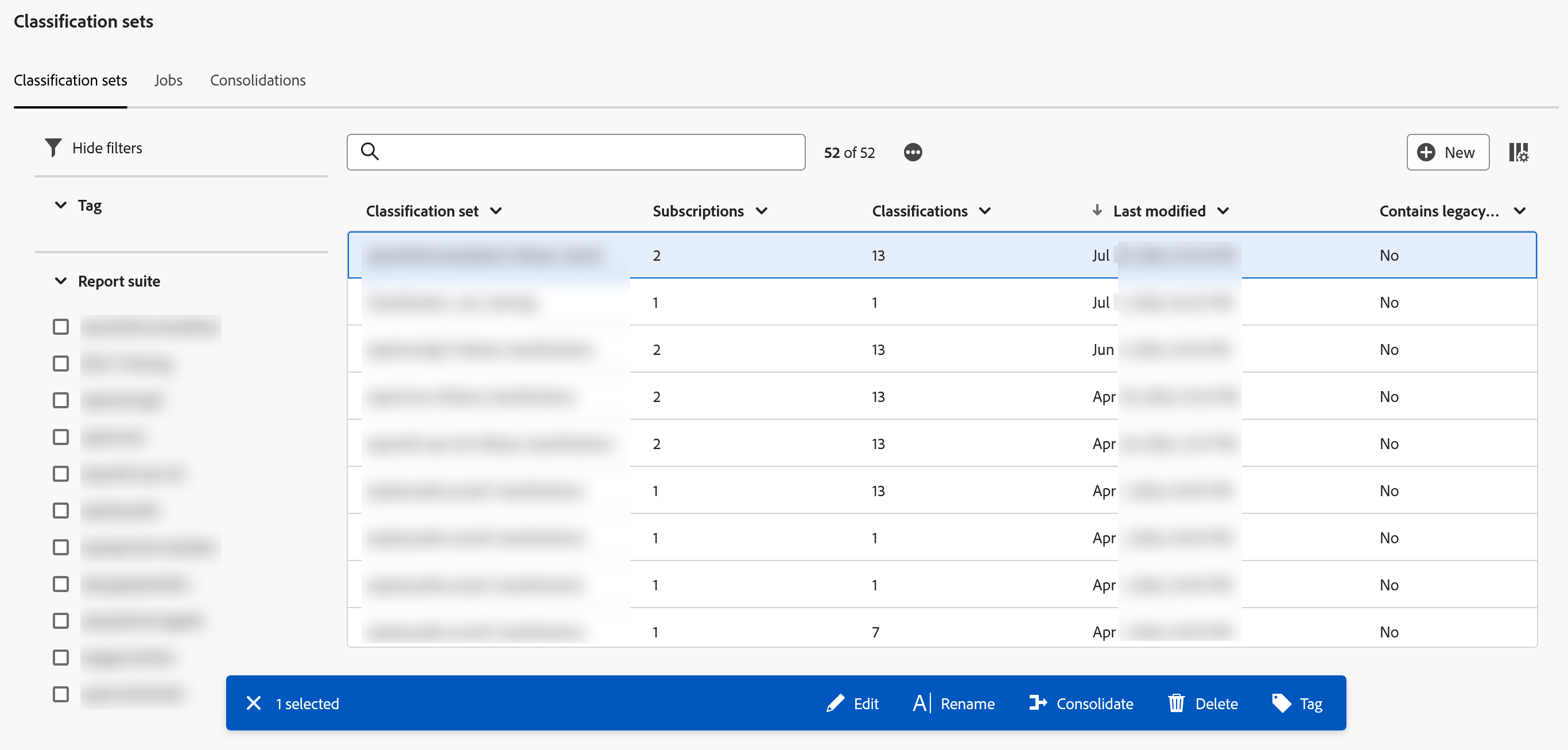
The Classification Sets area has a third tab you have not touched, sitting beside Classification Sets and Jobs. It is called Consolidations, and its existence tells a story.
When Adobe migrated existing customers off legacy classifications, it had to turn a per-report-suite system into a cross-suite one, and the safe way to do that automatically is to create one set per report suite. Which is exactly the duplication that classification sets were invented to eliminate. So a long-standing implementation arriving in the new interface often finds a pile of near-identical sets, one per suite, doing the same job in parallel.
Consolidations merges them into one properly subscribed set. If you have inherited an older implementation, this is real work waiting for you, and it is worth doing rather than living with, because every duplicate set is a place where the definitions can silently drift apart.
The legacy screens, and why not to build there
The old interfaces are still reachable from the Admin menu rather than Components, and they still work. If you inherit an implementation, you will find classifications defined in report suite settings, rules living in the Rule Builder, and uploads going through the Importer.
Learn to recognize them, because you will have to read them. Do not build new work there. Both legacy paths are on a published retirement schedule, and anything you create in them is work you have committed to migrating later.
What exists now, and what does not
The set exists. It knows which report suites and which key it applies to. It has four named columns, each one already a reportable dimension.
And every one of those dimensions is completely empty.
Open a report and Age Band will show a single line reading Unspecified, because nothing has told Adobe that member M-10482 is in the sixty and over band. The container is built and the shelves are labeled. Nothing is on them.
Putting the data in is Importing Classification Data, the most concrete thing in this module: a file, with a key column and some value columns, and several ways to get it into Adobe.
Analytics > Components > Classification sets, which has three tabs: Classification Sets to create and edit, Jobs to see what ran, and Consolidations to merge duplicate sets. Access needs a product admin account or the Report Suite Tools > Classifications permission. The legacy interfaces live under Admin, and the key dimension itself is enabled in Admin > Report Suites > Edit Settings.
This article focuses on the concepts, architecture, and practical guidance behind the topic. For the latest UI walkthroughs and step-by-step implementation instructions, use the links below. They leave this site and open Adobe's own documentation in a new tab.