Shape the data › Classifications
Importing Classification Data
The set exists. Four columns are named. Four dimensions are already sitting in Analysis Workspace, waiting.
And every one of them shows a single line reading Unspecified, because nothing has yet told Adobe that member M-10482 is in the sixty and over band. The shelves are labeled. Nothing is on them.
This section is where the data goes in, and it is the most concrete thing in the module. Strip away the interface and the whole feature reduces to one small, unglamorous object: a file, with a key column and some value columns. Everything else, including the rules in Classification Rule Builder, is a way of producing that file or avoiding having to.
What the file actually is
Here is a complete, valid classification file for the club. Not a simplified one. A real one.
Key,Age Band,Gender,Membership Tier,Join Year
M-10482,60+,Female,Gold,2019
M-10483,25-39,Male,Silver,2024
M-10484,18-24,Male,Silver,2026
M-10485,40-59,Female,Gold,2021
That is the entire technology. One header row and some data rows. The first column holds keys that Adobe Analytics already collected. Every other column holds an attribute that Adobe Analytics never collected and never could have.
Do not build that header row by hand
Almost every failed import in this feature traces back to a header row somebody typed themselves. So do not type one.
The Schema tab has a Template button, and it generates an empty file directly from your own schema. The Key column is spelled correctly because Adobe spelled it. The classification names match because Adobe copied them from the set you built. A template file cannot have a wrong header, and that single habit removes an entire category of failure.
Before you start: open Components › Classification sets › Club Member Attributes › Schema tab › Template.
- Set
File FormattoComma separated values, or Excel tab separated values. - Set
File encodingtoUTF-8, or Latin-1. - Choose
Download.
It lands in your browser's download folder as Classification Set.csv. If a file of that name exists already, Adobe appends (1), (2), and so on — which is how people end up importing last month's file by mistake.
Open it, paste your data under the headers, save, and it is ready to upload. If your source is a CRM or a product catalog that can export directly, point the export at the template's column names rather than hand-editing afterward.
The rules of the file
These are the constraints the importer enforces. None of them are negotiable, and all of them produce failures that read like riddles if you do not know the rule behind them.
| Rule | What happens when you break it |
|---|---|
The first header must be exactly Key, capital K | The import fails. Lowercase key is a different string. |
At least two headers: Key plus one classification | The import fails. A key with nothing attached is not classification data. |
| Every other header must match a classification name in your set | It does not fail. See the warning below, because this is the dangerous one. |
| No blank headers | The import fails. |
| Every data row must have exactly as many fields as the header row | The import fails on a mismatch. |
| Keys and values cap at 255 bytes | Longer values are rejected. |
No value of 0, and that includes 00 and 000 | An error, for reasons that will never feel satisfying. |
Fields containing a comma go in double quotes, and a literal quote is doubled ("") | Malformed rows, or fields silently split in two. |
| Encode as UTF-8 without a BOM | The BOM attaches itself to the first header, so Key stops being Key. |
| Keep to thirty columns or fewer | Not a hard limit, but the point past which files get slow and unwieldy. |
No caret (^) in a classification name | The caret is reserved. It denotes a subclassification. |
An empty field is not an error. It simply means no value for that classification on that key, which is a perfectly legitimate thing to say. Leading and trailing spaces around a field get trimmed for you, so a stray space at the end of a value is forgiven.
Three formats, and when each earns its place
| Format | Extension | Reach for it when |
|---|---|---|
| CSV | .csv | A human is going to open this in a spreadsheet. The default, and the right default. |
| TSV or TAB | .tsv, .tab | Your values are full of commas. Product names and addresses are the usual culprits, and tabs sidestep the quoting problem entirely. |
| JSON | .json | A system is generating the file, not a person. Uses JSONL conventions, one record per line. |
JSON has one trap worth naming. In JSON the key field is lowercase key, and it is case sensitive, which is the exact opposite of the capital Key that CSV and TSV demand. Nothing about that is intuitive. Write it down somewhere, because the day you switch formats it will cost you an hour.
Follow along: the browser upload
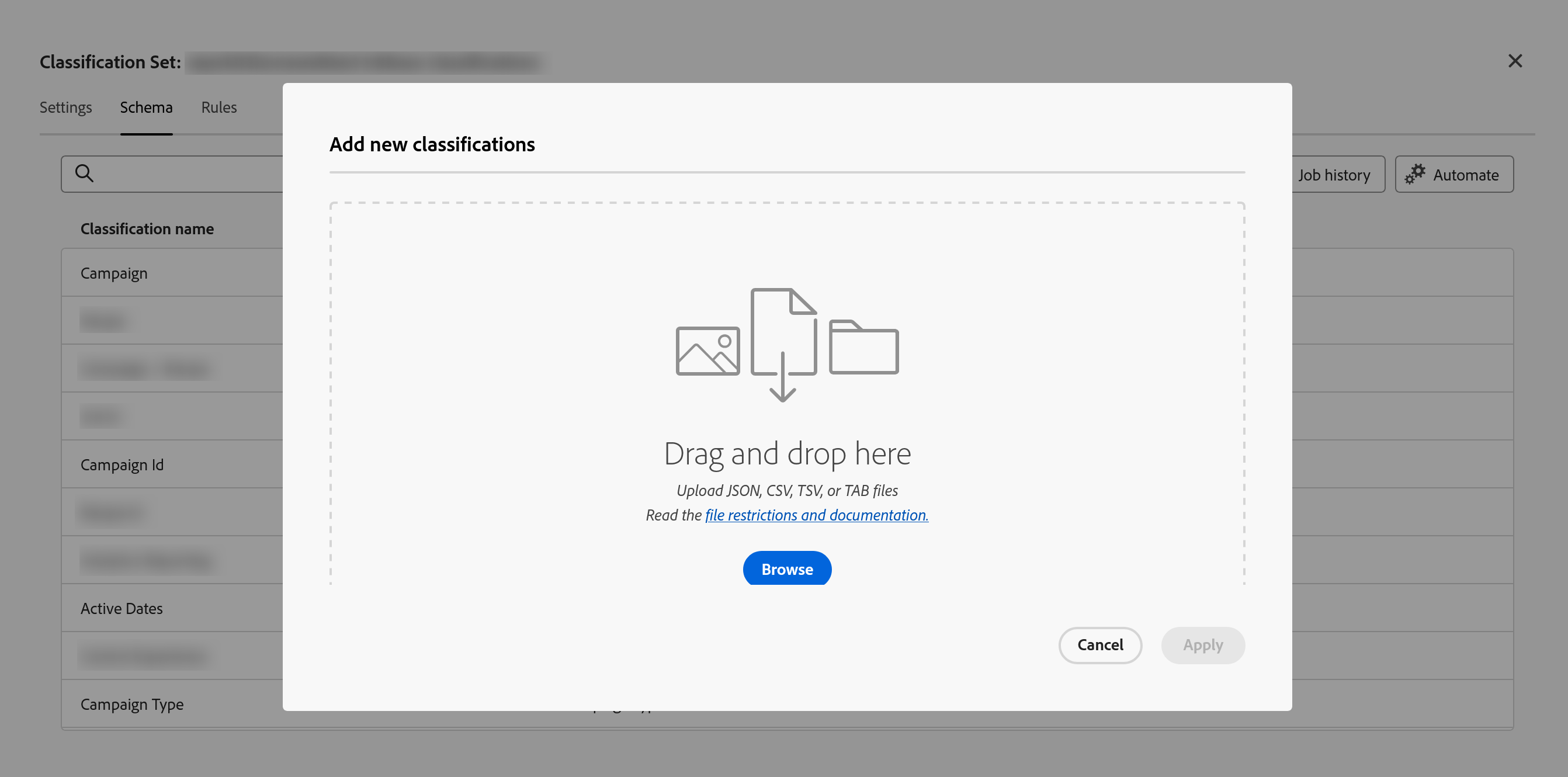
With a file ready, go back to the Schema tab and select Upload.
Before you start: open Components › Classification sets › Club Member Attributes › Schema tab › Upload.
- Under
Add new classifications, drag and drop the file, or browse to it. -
Read the
Schema Previewthat appears, showing the columns Adobe found in your file. This is the last checkpoint before the data lands. An alert here means a column in your file is not in your schema. - Decide whether to tick
Overwrite data on conflict?. -
Choose
Apply. If any column is new, Adobe warns that it will be created on import. - Choose
Confirm Upload— orCancel Uploadif the preview showed something you did not expect.
Two of those steps decide whether this goes well.
Overwrite on conflict, and what it actually means
The checkbox governs what happens when the file has a value for a key that already has a different value. It does nothing at all for keys that are new, and nothing for fields you left empty. It matters only where old and new disagree.
| Overwrite on conflict | Key | Current value | Value in file | Value after import |
|---|---|---|---|---|
| Checked | 1234 | green | blue | blue |
| Unchecked | 1234 | green | blue | green |
Checked means the file is the authority. Unchecked means existing data is protected and the file may only fill in blanks. Both are correct in different situations. A nightly CRM export should almost certainly overwrite, because the CRM is the source of truth and yesterday's tiers are stale. A one-off file adding a new column to an established set should almost certainly not, because you are adding information, not replacing it.
Deletions need overwrite on; a delete is a conflict by definition.
The alert nobody reads, and the trap underneath it
Look again at the third row of the rules table, the one that says a mismatched header does not fail.
Type Membership Teir instead of Membership Tier and the upload succeeds. Adobe shows an alert in the Schema Preview saying the column is not in the existing schema and will be created on import, you select Confirm Upload the way you have a hundred times, and now your set has five classifications instead of four. Membership Tier stays exactly as stale as it was. Membership Teir is a brand new, permanently identified dimension holding all of your fresh data, and it will appear in the dimension list beside the real one, forever. Read the Schema Preview. It is the only place this gets caught, and the alert is telling you the truth in a tone that sounds like a formality.
This is also why the Template habit matters so much. A template cannot misspell your own schema back at you.
Deleting classification data
Sooner or later something needs removing, and there is no delete button. You delete by uploading, using two reserved tokens.
Key,Age Band,Gender,Membership Tier,Join Year
M-10483,25-39,Male,~empty~,2024          <- clears ONLY Membership Tier for this key
M-10484,~deletekey~                       <- removes this key and ALL of its data
M-10485,40-59,Female,Platinum,2021        <- an ordinary update, in the same file

Rules:
  ~empty~       clears one field, leaves the others alone
  ~deletekey~   clears the key entirely, as if it was never classified
                one per row is enough, in any column

  Both tokens must match EXACTLY. Lowercase. No spaces. No capitals.
  "~Empty~" and "~ empty ~" are just ordinary text values.

  Overwrite data on conflict must be ON, or the delete does nothing.
Two things about deletion that people learn the hard way.
You cannot delete a value in the Key column. Those values arrived in a server call and were written into the variable, and nothing in this interface reaches back into collected data. Classifications are a layer on top. They were never the data itself.
And removing a classification value also removes anything hanging beneath it. A classification with subclassifications takes its children with it, because a child cannot exist without its parent.
The same property that makes classifications wonderful makes deletion dangerous. Upload a ~deletekey~ and that key stops being classified across your entire history, immediately. Every report that ever used it changes, going back to the day the key was first collected. Nothing warns you, because nothing failed. Before deleting anything at scale, use Download to export what is currently there, and keep that file. It is the only backup that exists.
Checking what actually landed
The Download button is not just for backups. It is how you verify an import did what you thought it did, and the Data Returned option is the part that earns its keep.
| Data Returned | What comes back | Use it to |
|---|---|---|
| All values | Everything currently classified | Take a backup before a risky change |
| Any columns empty | Keys where at least one classification has no value | Find the gaps. This is the one that answers why a report is full of Unspecified. |
| All columns empty | Keys with no classification data at all | Find keys the file never reached, which is usually a key mismatch |
Set the row count, pick a date range, choose a format and encoding, and download. Get into the habit of running "Any columns empty" after every significant import, because it turns a vague suspicion that something is missing into a list of exactly which keys are missing what.
Automating it, because nobody uploads a file every night
Manual uploads are fine for a product catalog that changes quarterly. They are hopeless for a member database that changes daily, and a process that depends on a person remembering to do something at 6pm is a process that will fail in December.
So you point the classification set at a cloud storage location, drop files there on a schedule, and Adobe collects them on its own.
Step one: the account and the location
Cloud storage is configured outside the classification set, in its own area, and it is a two-part job. An account holds the credentials for a cloud provider. A location is a specific folder inside that account.
Go to Components > Locations. Create the account on the Location accounts tab, then the location on the Locations tab.
The account types available for classification import are the modern, role-based ones: Amazon S3 Role ARN, Google Cloud Platform, and Azure. The older credential styles, including plain FTP and key-based S3 or Azure accounts, still exist but are export-only. They serve Data Feeds and Data Warehouse, and they will not appear when you are importing classifications. If you built an FTP account years ago and cannot find it in the dropdown here, that is why.
The location must point at a folder, not the root of the bucket. Give the location a prefix, something as simple as classifications/. Hosting files at the root of a bucket does not work with most cloud providers, and the failure is confusing rather than obvious.
Adobe's IP ranges have to be allowed through your network. This is a conversation with a network administrator, not a checkbox, and it is worth starting before you need it. Which range depends on the Analytics data center you are on.
⚠️ Verified July 2026. Recheck these ranges before production use; Adobe can change them without notice.
| Analytics data center | Allow this IP range |
|---|---|
| Pacific North West | 52.254.104.0/22 |
| London | 51.138.0.0/19 |
| Singapore | 20.32.0.0/11 |
Step two: point the set at the location
Back in the classification set, on the Schema tab, select Automate.
- Where
Components›Classification sets›Club Member Attributes›Schematab ›Automate- Location Account
Club CRM Exports, or create a new account- Location
club-analytics/classifications/- List delimiter
Comma— the alternatives are Semicolon, Colon, Vertical bar, Space and Tab- File encoding
UTF-8, or Latin-1- Notify on ingest
analytics@club.example- Then
- Choose
Validate, and wait for “Location validation successful. Connection to cloud storage verified.” - Finally
Save, orUpdateif the connection already existed
Do not skip Validate. It is the only moment where a wrong bucket name, a missing permission, or a blocked IP range tells you so directly. Everything after this point fails quietly.
From here, your CRM writes its nightly export to that folder, Adobe notices the file within about fifteen minutes, and an import job runs. The result lands in the Jobs area, and if you listed an email address you will hear about it either way.
The one that will bite you
An imported file stays exactly where it was. And on the next import job, Adobe finds it sitting there and imports it again. Then again. A folder that nobody cleans up becomes a folder that reprocesses its entire history on every run, and the set grows slower and stranger week by week while the data looks fine. Delete the file after a successful import, or put a lifecycle rule on the bucket that ages files out. Whichever you choose, decide it now, on the day you set this up, because this is not the kind of problem that announces itself.
One more thing about locations, worth knowing before somebody tidies up. If a location is deleted, every classification set schema pointing at it fails the next time it runs. Locations are shared infrastructure, and deleting one is not a local decision.
FTP, briefly
Older implementations import classifications over standard FTP, using a companion FIN file to signal that an upload had finished. Cloud locations need no FIN file, and the FTP path retired alongside the legacy importer on August 31, 2026.
Learn to recognize it in an inherited implementation. Do not build on it.
What a file cannot do for you
Everything in this section produced the same object. A file with a key column and value columns, whether a person typed it, a CRM exported it, or a bucket delivered it at two in the morning.
Which is fine when the attributes genuinely live somewhere else, like a member's age or a product's supplier. It is absurd when the attributes are already sitting inside the key itself. Nobody should be maintaining a spreadsheet that says eml_2026_07_winback_in means the channel is Email, when the key says so in plain sight.
For those, the file should not exist at all. Adobe should read the key and fill the columns itself, which is exactly what the Classification Rule Builder does.
Uploads, templates, downloads, and automation all live on the Schema tab of a set: Components > Classification sets > [your set] > Schema. Cloud accounts and folders are configured separately at Components > Locations. Import results appear under Components > Classification sets > Jobs.
This article focuses on the concepts, architecture, and practical guidance behind the topic. For the latest UI walkthroughs and step-by-step implementation instructions, use the links below. They leave this site and open Adobe's own documentation in a new tab.