Collect the data › Data Collection
AppMeasurement Library
Open the network tab in your browser on almost any large website and watch the requests fly past. Tucked among the images and scripts, you will often find a call going out to an Adobe server, and your browser will frequently label it as an image. That is the small mystery worth solving, because the moment you understand why an analytics tool is sending an image, you understand what AppMeasurement actually does and most of digital analytics stops feeling like magic. This is the library that has carried the majority of Adobe Analytics traffic for over a decade, and it all comes down to that one strange little request.
First, how a page even loads
When you type abc.com and hit enter, your browser does not magically know where that site lives. It asks the web's address book, DNS, which translates the name abc.com into the numeric IP address of the server hosting it. Your browser then opens a conversation with that server, and the conversation is the whole point.
It works like two people talking. One speaks while the other listens, then they swap. Your browser asks, "send me the home page," and the server answers by sending back everything the page is made of: the text, the images, the stylesheets that make it look right, the videos, the scripts. Your browser's entire job is to take that pile of materials and render it into the page you actually see and click. Those requests for things ("send me this file") are the everyday traffic of the web, happening billions of times a second across every browser on earth.
So far, nothing about analytics. The page came from abc.com's server, and that is the end of the story. Until you add a measurement library.
Where AppMeasurement slips in
When AppMeasurement is on a page, it adds one extra, almost invisible ingredient: a transparent image, just one pixel by one pixel, that no human is ever meant to see. When abc.com loads, every piece of the page is requested from abc.com's server as usual, except that single pixel. That one is requested from Adobe's server instead.
And here is the clever part. A request for an image is just a line of text, and that line has room in it for far more than a file name. AppMeasurement takes everything it wants to report, the page name, the campaign, the eVars, the events, and packs it all into that request as it goes out the door to Adobe. Adobe receives the request, quietly records every piece of data riding inside it, and answers with the only thing the browser was technically asking for: a tiny, blank, one-pixel image. The browser dutifully renders that nothing, and the visitor sees absolutely no difference. But the data has arrived.
It behaves a little like a courier who appears to be delivering a blank postcard, while the real message is written into the address on the front. Nothing is being broken into and nothing is hidden from the site owner who put the library there on purpose. It is simply that the request is the delivery vehicle, and the image that comes back is beside the point.
So that is why they call it a pixel
Once you see this, a whole pile of jargon suddenly makes sense. That Adobe server call you spotted in the network tab gets called an image request, a pixel, or a beacon, and now you know why, because it is, quite literally, a request for a 1x1 image. Copy the request's address into a fresh browser tab and you will get back a minuscule transparent dot. That dot is the image. The data was never about the picture.
This is not an Adobe quirk, it is how the whole industry collects data. When you hear about a "Google pixel," a "Meta pixel," or a "LinkedIn pixel," it is the same trick: a third party's invisible image request carrying information back to its own servers. Adobe was simply one of the early, polished versions of it.
One mechanical detail worth holding onto. By default the data rides inside the address of the request, which is a GET, the browser asking Adobe's server for the pixel. Addresses can only get so long before browsers refuse them, so when a hit carries a lot of data (a long products string, say), AppMeasurement automatically switches to sending it as a POST, where the data travels in the body of the request rather than the address. Same destination, no truncation, and you will see the method flip from GET to POST right there in the debugger.
Here is one of those addresses, slowed down and taken apart. This is what the entry in your network tab is actually saying.
Two things are worth taking from that. The address is mostly not yours: the fixed path, the hit source, the library version and the cache buster are all added for you, and the report suite is the only part of the address you decided. Everything you actually chose to measure sits in the second half, after the question mark, which is why a debugging session usually starts there.
The version segment repays a second look, because it is the fastest way to find something nobody knew was still running. It names the library that built the request, so a JS- prefix is AppMeasurement and an H. prefix is the far older H-code library it replaced. Find an H. version on a site that migrated years ago and you have found a hardcoded library still firing from a template nobody remembers owning, which is not a thing any amount of reading the tag manager would have told you.
The s object: what packs the pixel
So what assembles all that data and stuffs it into the request? A single object that lives on the page, named s by convention. Everything AppMeasurement does revolves around it. You write values into its fields, and when you fire a tracking call, AppMeasurement reads those fields, builds the pixel request, and sends it.
// Write the values this hit should carry
s.pageName = "Home";
s.eVar1    = "logged-in";
s.events   = "event1";
s.products = ";SKU-123";

// Send the page-view beacon (the pixel goes out here)
s.t();
There is one behavior of s that trips up nearly everyone, so it is worth saying plainly before anything else: setting a value does not un-set it later. The s object holds onto whatever you put in it. It does not wipe itself clean after a hit goes out. So if the next interaction fires another hit without anything having cleared the old values, last action's data rides along on the new one. This single fact, that the s object persists until something deliberately clears it, is the root of the single most common AppMeasurement bug there is: variables bleeding from one hit into the next.
There is no automatic erase. AppMeasurement does not reset your eVars, props, events, or products after a beacon. Clearing is something you or your tag manager must do on purpose, and getting the timing of it right is a discipline in itself. Exactly when to clear belongs with Launch rules, because in practice a tag manager owns that job.
The lifecycle of a single hit
Strip away the tooling and every AppMeasurement hit follows the same four beats.
From action to beacon, in four steps.
- The tracker exists. The
sobject is created once when the library loads. In a tag manager, this is done for you. - You set variables. Assign the values this hit should carry:
s.pageName, eVars,s.events,s.products. - You fire a tracking call.
s.t()for a page view,s.tl()for anything that is not a page view. - The beacon leaves. AppMeasurement assembles the image request and sends it to Adobe's collection servers.
s.t() versus s.tl(): the distinction everything hinges on
There are two tracking calls, and confusing them is behind a surprising share of "my data is missing" tickets. Each has a section of its own, Page View Tracking and Link Tracking; what matters here is the difference between them.
s.t() | s.tl() | |
|---|---|---|
| Use it for | Page views | Anything that is not a page view: button clicks, form steps, video starts, downloads, exits |
| Counts as a page view? | Yes, it increments Page Views | No, it is a link/interaction hit |
| What it sends | Every variable currently set on s | Only the variables you explicitly allow (see below) |
The s.tl() call takes the element clicked, a link type, and a link name:
// linkType: "o" = custom link, "d" = download, "e" = exit link
s.tl(this, "o", "Newsletter Signup");
The linkTrackVars trap (the one that haunts everyone)
Here is the behavior that, more than any other, eats analytics developers' afternoons. On a page view, s.t() sends everything you set. On a link hit, s.tl() is the opposite: by default it sends almost nothing. To let a variable or an event onto a link hit, you have to name it in two gatekeeper lists:
s.linkTrackVars, a comma-delimited list of the variables allowed onto the hit.s.linkTrackEvents, the same idea for events (and the event must also appear inlinkTrackVarsasevents).
s.linkTrackVars   = "eVar5,events";   // without this, eVar5 is silently dropped
s.linkTrackEvents = "event5";          // events need BOTH lists

s.eVar5  = "newsletter-signup";
s.events = "event5";
s.tl(this, "o", "Newsletter Signup");
Now the trap as it actually springs. You build a link-tracking rule in the tag manager, set your variables through the interface, and everything works, because the Adobe Analytics extension quietly maintains linkTrackVars for every variable you set through its form. Then you add a few lines of custom code to that same rule to set one more eVar, and that eVar vanishes from the hit. Nothing errors. The data simply is not there.
The reason is exact: the extension only manages linkTrackVars for variables set through its interface. Anything you set in the custom code editor, you have to add to linkTrackVars yourself, in code. Forget, and it gets stripped.
Computing the value in a data element is only half the answer. A data element produces a value, but you still have to assign it, and if you assign it with custom code you are right back in the trap. What actually saves you is assigning the value through the extension's "Set Variables" form, pointing it at the data element, because that is what makes the extension manage linkTrackVars for you. So let the data element do the computing, then set the variable through the form rather than in custom code. The rule-level mechanics of this belong with Adobe Launch (Tags).
doPlugins: the callback Adobe named for you
A frequent misunderstanding is that doPlugins is a function you invent. It is not. It is a specific name AppMeasurement watches for. If you define a function called s.doPlugins and switch on s.usePlugins = true, AppMeasurement calls it automatically, and here is the defining property worth memorizing: it runs on every single beacon, both s.t() and s.tl().
s.usePlugins = true;
s.doPlugins = function(s) {
  // Runs on EVERY beacon, page views and link hits alike.
  // The right home for logic that genuinely belongs on every hit.
};
That "every beacon" nature is both the point and the hazard. Logic that truly belongs on every hit goes here. But logic you only meant for page loads, dropped into doPlugins out of habit, will quietly re-run on every link click too, which is its own slippery category of bug. The rule of thumb: if it must touch every hit, doPlugins is its home; if it should run once per page, it does not belong there.
apl: append to any list, not just events
The apl (append to list) function safely adds a value to a delimited string variable. If the value is already there it does nothing, so you never get duplicates; if the variable is empty it just sets it. The widespread misconception is that apl is only for s.events. It is not. It works on any list-delimited variable, and that crucially includes linkTrackVars and linkTrackEvents themselves.
// apl(list, valueToAdd, inputDelimiter, outputDelimiter, uniqueCheck)
// uniqueCheck: 0 = always append, 1/2 = append only if not already present

s.events          = s.apl(s.events, "event5", ",", ",", 1);
s.linkTrackVars   = s.apl(s.linkTrackVars, "eVar5", ",", ",", 1);
s.linkTrackEvents = s.apl(s.linkTrackEvents, "event5", ",", ",", 1);
This is exactly what makes it powerful inside a products-string builder. When your code is looping through a data layer array, adding a merchandising eVar here, an event there, building the string in stages, apl lets you accumulate the events and keep linkTrackVars in sync as you go, without ever hand-tracking whether something is already in the list. That is the real use case, and treating apl as events-only leaves the most useful half on the table.
apl is an Adobe Consulting plug-in rather than part of the core library, you add it through the Common Analytics Plugins extension. It also does not carry over to the Web SDK, which handles list values its own way. One more thing that belongs to the AppMeasurement era specifically.
Name your custom links on purpose
That third argument to s.tl(), the link name, is not a throwaway. Give every custom link a clear, deliberate, human-readable name. Two reasons turn this from a nicety into a discipline.
First, reconciliation. A clean link name gives you a stable thing to QA and debug against. When a number looks wrong, a well-named Custom Link report is often where you confirm whether the hit fired at all and what it carried.
Second, keep your link names low in variety. The Custom Link report is a dimension like any other, and every dimension has a ceiling on how many unique values it will track in a month before the rest get swept into a single "Low-Traffic" bucket and effectively lost. It is a myth that custom links are exempt from this. What protects you is not the dimension, it is your own restraint: a small, controlled set of meaningful names stays comfortably under the ceiling, while dumping a raw URL or a unique string into the name on every click will blow past it. Name links by what they mean, not by where they happen to point.
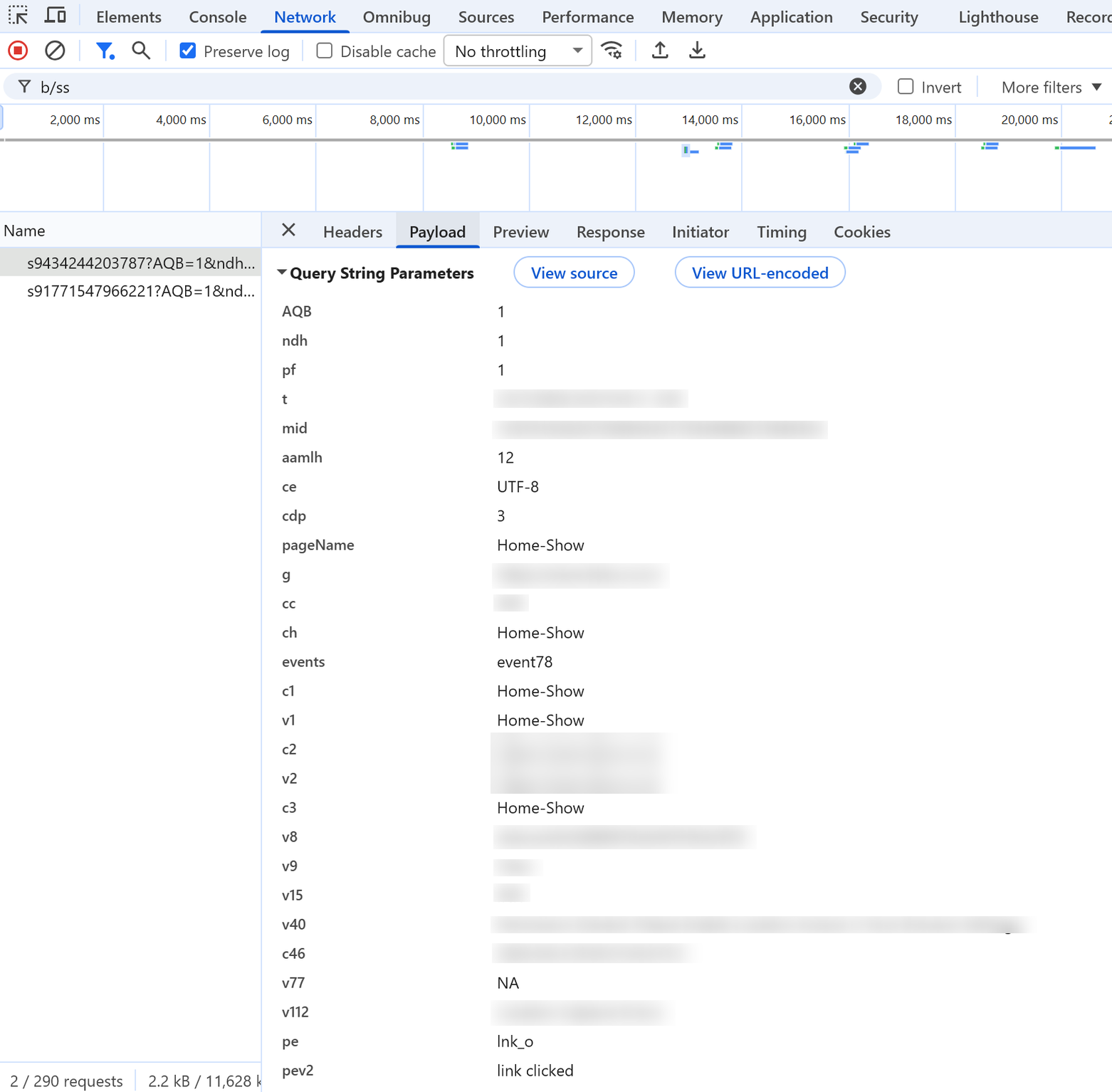
c1 is prop1, v1 is eVar1, and events carries a bare event78 with nothing to say what it means. Read the last two lines and you can also tell what kind of hit this is: pe=lnk_o makes it a link-tracking call rather than a page view, and pev2 carries the link name. That gap between the wire and the interface is why a variable can look perfectly configured in Adobe and still arrive empty, and why reading a beacon is its own skill.The last piece: how a pixel becomes a report
You now know how a hit leaves the page. But a hit landing on Adobe's servers is not yet a report, and the gap between those two things is where the whole picture finally clicks together.
Every server call you send lands as a single row in an enormous table, one row per hit. There is one such table per report suite, which is a large part of why the report suite is such a consequential choice: it is the boundary of where your data physically lives. The table is hundreds of columns wide, with a slot waiting for every eVar, every prop, every event, and all the standard fields a hit can carry. Whatever your pixel brought with it gets dropped into the matching columns of its row, and that is collection: a steady rain of rows, one per interaction.
Which raises the question that unlocks everything. Where, in that table, are Page Views stored? Where is the Visits number? Where does Visitors live? The answer is that they do not live anywhere. There is no column for "Visitors." Those numbers are not stored at all, they are worked out the moment you ask for them.
Here is how. Every hit quietly carries an identity, an ID that says "this is the same browser as before." Today it is the ECID (you will see it called the Marketing Cloud ID, MCID, in older material, and you can override it with your own s.visitorID). When you open a report for a given date range, with a given segment, broken down by a given dimension, Adobe looks at all the rows in scope and counts the distinct identities. That count is your Visitors. It groups each identity's hits into sessions using timing rules (a new visit begins after 30 minutes of inactivity, with a few other caps) and that gives you Visits. Change the date range or the segment and the very same rows produce different numbers, because the numbers were never stored, they were computed against your question.
This is the real reason, going all the way back to Adobe Analytics Fundamentals, that the same Adobe data can answer questions you never thought to plan for. Nothing was pre-totaled and frozen. The full machinery, the structure of that table and how identity is stitched across hits, gets unpacked in Data Feeds. For now, hold the through-line: a click becomes a pixel, the pixel becomes a row, and the numbers you read are calculated from those rows when you ask.
Deployment, in one line: AppMeasurement can run through a tag management system or be hosted directly on your site with no tag manager at all. That choice, and why most teams pick a TMS, has a section of its own in Tag Management Systems. And the picture above is shifting in the modern Web SDK era, where the Edge Network changes how and where that beacon is sent, which is exactly where the Web SDK goes.
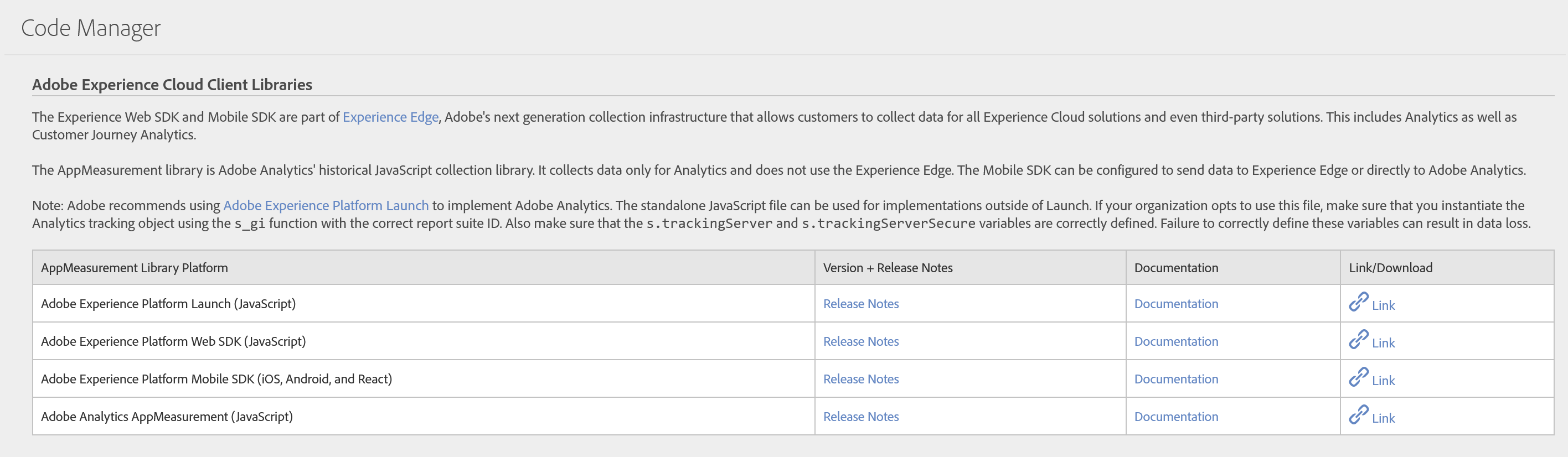
The library itself is downloaded from Admin > All admin > Code manager, which requires admin access. It hands you a zip containing AppMeasurement.js and VisitorAPI.js. Everything after that happens in your own codebase or your tag manager, not in Adobe.
This article focuses on the concepts, architecture, and practical guidance behind the topic. For the latest UI walkthroughs and step-by-step implementation instructions, use the links below. They leave this site and open Adobe's own documentation in a new tab.