Start with the foundations › Variables: Props, eVars, and Events
Events (Success Events)
To understand events, step back from Adobe Analytics for a moment and ask a plainer question: what is a report? People built reports long before computers. Picture a government worker surveying a village to record who lives there. They go house to house, then write down something like: males 500, females 450, children 200. That is a report, and it already contains the two ingredients every report ever made is built from.
Look closely. There is a classification, males, females, children, that answers the question what? And there is a count, the numbers themselves, that answers the question how many? The classification is called a dimension: it labels and groups the data. The count is called a metric: it measures. Cross a dimension with a metric and you have a report. This is not an Adobe idea, it is universal, as true of that village census as of a spreadsheet or any analytics platform ever built.
Every report is a label crossed with a number
| Group (dimension: "what?") | People (metric: "how many?") |
|---|---|
| Males | 500 |
| Females | 450 |
| Children | 200 |
The village census, and every report after it: a dimension that labels, a metric that counts.
Props and eVars are both dimensions, the labels on your data. This section covers the other half of every report: the metric. In Adobe Analytics the metrics you define are called success events. If an eVar answers "who or what gets the credit," an event answers "how many" and "how much." On their own, an eVar is just a label and an event is just a tally; cross them and you get a KPI. Here is that crossing made literal:
eVar (dimension) × event (metric) = your KPI
| Campaign (eVar) | Orders (counter event) | Revenue (currency event) |
|---|---|---|
| 1,240 | $86,300 | |
| Paid Search | 980 | $71,500 |
| Social | 410 | $22,100 |
That is all a Workspace freeform table really is: a dimension (the eVar) crossed with one or more metrics (the events).
An event is a switch that counts
At its simplest, a success event records that something happened. When the action occurs, a form is submitted, a file is downloaded, the event fires and adds to a running count. There is no separate "it did not happen" value to send; an event is either present on a hit or it is not. That is the core idea. But not every event is a plain tally, so Adobe gives you three types, and the type decides what kind of value the event can hold.
| Type | Holds | Example | Typical use |
|---|---|---|---|
| Counter | Occurrences (defaults to +1; a whole number increments by more; no decimals) | s.events="event1" | Registrations, downloads, form submits |
| Numeric | A non-currency number, which Adobe sums | s.events="event2=4.5" | Ratings, items in cart, search results |
| Currency | Money, converted to the suite's base currency, then summed | s.events="event3=149.99" | Revenue, shipping, tax, discounts |
A counter is the default and by far the most common: it tallies occurrences. If a download button is clicked five times, the counter reports 5. Each firing adds 1 by default, though you can pass a whole number to add several at once (event1=5 adds five).
A numeric event stores a number you pass in and sums it. Say visitors rate a product from 1 to 5, and you send the chosen rating into a numeric event. Adobe adds up every rating it receives. To turn that running sum into the average rating you actually want (product A: 3.5, product B: 4.1), you divide the numeric event by a counter that tallies how many ratings came in, a calculated metric. The event holds the sum; the average is one step you build on top.
A currency event is a numeric event for money: it converts the value from the page's currency to the report suite's base currency, then sums it, which is how revenue, tax, and shipping are tracked.
The sharp edge to remember: type and value must match. A counter accepts whole-number increments but rejects a decimal like event1=4.5; for decimals, the event must be numeric or currency. A type-value mismatch is a surprisingly common reason an event "just will not show up." The good news is you can change an event's type later without losing past data, so a wrong first choice is fixable.
// Counter (fires once, adds 1)
s.events = "event1";

// Counter incremented by a whole number
s.events = "event1=5";

// Several at once
s.events = "event1,event2,event5";

// Numeric (a decimal Adobe will sum, e.g. a rating)
s.events = "event10=4.5";

// Currency (revenue, converted then summed)
s.events = "purchase,event20=149.99";

// Serialized with an event ID, so a refresh cannot double-count
s.events = "event1:ORD-5582";
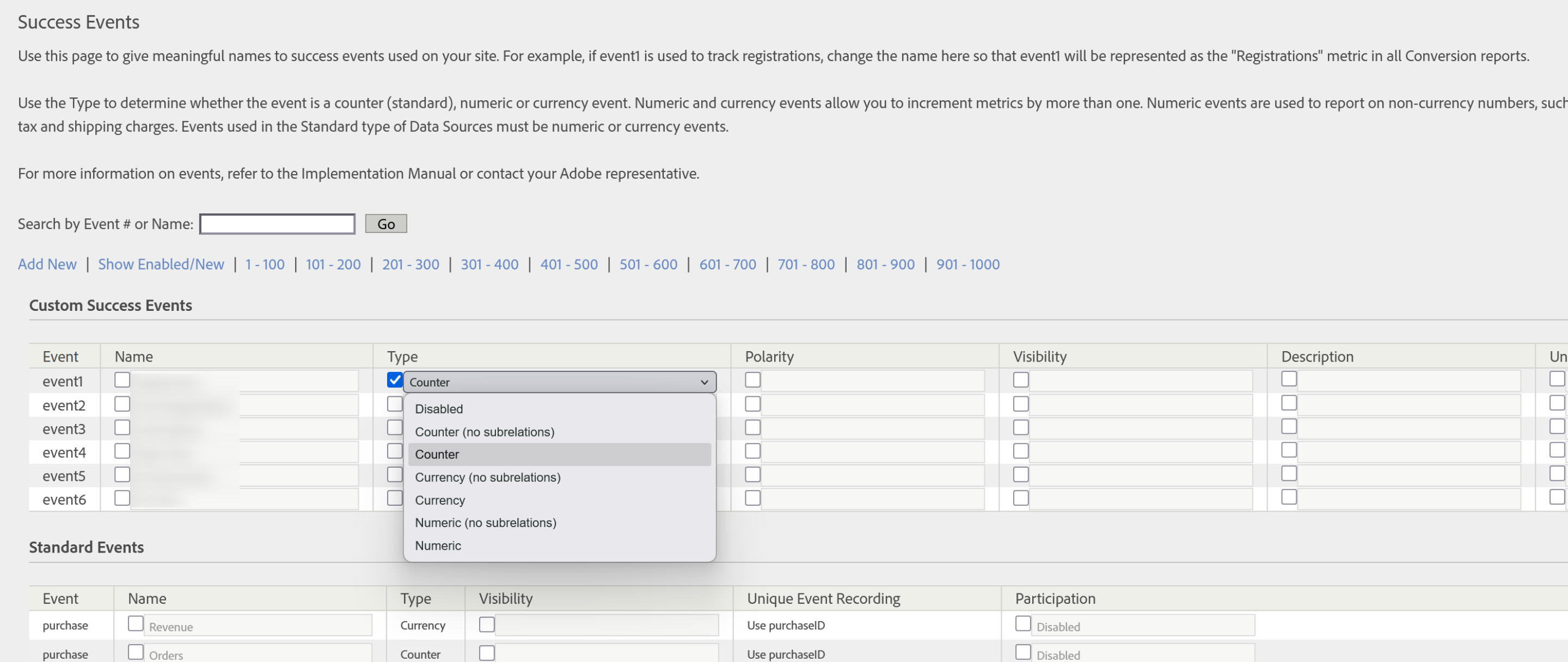
Serialization: stopping the double-count
Here is a problem that silently inflates KPIs: a visitor lands on the order-confirmation page, the purchase event fires, then they hit refresh, and it fires again. Now you have recorded two orders for one sale. Serialization is Adobe's built-in fix. Each event's "Unique Event Recording" setting offers three modes: always record (the default, every occurrence counts), record once per visit, and use event ID (true serialization).
Event IDs are powerful and unforgiving: de-duplication is global across every visitor and never expires, so the same ID seen two years later is still ignored, which means your IDs must be genuinely unique (use the order number, not a constant). IDs are alphanumeric up to 20 bytes. One special case worth memorizing: do not serialize the purchase event with an event ID, use the dedicated s.purchaseID variable instead, which de-duplicates the whole purchase.
These commerce events are reserved by Adobe with fixed meanings, you do not define them, you just use them. They get their full treatment alongside the other built-ins, in default and reserved variables.
Why a thousand events, and one setting to know
You get up to 1000 custom events (event1 to event1000, depending on your contract), which sounds extravagant next to 250 eVars until you think about scale. A modern site is not just pages to read; a transactional site has a huge number of actions: add to cart, apply a coupon, start checkout, submit each form, rate, share. Every action you want to count needs an event. It is normal to have far more events than dimensions, because there are simply more things to count than there are ways to label.
One per-event setting worth knowing is polarity: you can flag whether an upward trend for a metric is good or bad, because for some events, error counts or refunds, a rising number is bad news. It mattered more in classic reporting, where it shaped default sorting and coloring. In Analysis Workspace, where you sort and conditionally format however you like, it matters far less, but it is still there.
With so many events available, the failure mode is not running out, it is sprawl. Name and document every event in a solution design document the moment you enable it. An unnamed event47 that nobody remembers the purpose of is how a measurement plan quietly rots.
Props, eVars, and events are the three you choose. But Adobe has already chosen a handful for you, filled them in without asking, and given several of them names that sound interchangeable and are not. Default and Reserved Variables is where the ones you did not pick get sorted out.
Configure Events: Admin → Report Suites → Edit Settings → Conversion → Success Events
Enable Serialization: Success Events → Edit → Unique Event Recording → Use Event ID
This article focuses on the concepts, architecture, and practical guidance behind the topic. For the latest UI walkthroughs and step-by-step implementation instructions, use the links below. They leave this site and open Adobe's own documentation in a new tab.