Shape the data › Classifications
Classification Rule Builder
Everything Importing Classification Data taught you to do, this section is going to tell you to stop doing.
Not because it was wrong. Because for a whole class of key, it is unnecessary, and somebody has been doing it by hand for years.
Think about what a classification file for campaign tracking codes actually contains. Row after row explaining that eml_2026_07_winback_in is an Email campaign, from July, called Winback, in India. Every one of those facts is already sitting in the key, in plain sight, spelled out. And yet a person opens a spreadsheet every month and types them out again, so that Adobe can be told what Adobe could have read for itself.
That spreadsheet should not exist. This section is how you make it stop existing.
A rule is not a different mechanism
Before the interface, one idea, because it makes the whole feature click into place.
A rule does not classify data. A rule writes the file.
Every four hours, Adobe takes your rules, runs them against the keys it has seen, produces exactly the kind of file you built by hand in Importing Classification Data, and imports it. Same columns. Same key. Same lookup. The rule is not a parallel system with its own magic. It is a small tireless clerk sitting where you used to sit, filling in the same spreadsheet, and never once forgetting.
Hold on to that. When something strange happens later in this section, and it will, the explanation is almost always that a rule quietly uploaded a file you did not know about.
Rules live inside the set now
In the old system, rule sets were their own thing. You built a rule set, then separately told it which report suites to apply to, and kept that mapping in your head.
Not anymore. Rules are a tab inside the classification set, and they apply automatically to every report suite and key dimension combination subscribed to that set. Subscribe a new report suite tomorrow and your rules are already working there. You do not attach them. You do not remember to.
Open the set and go to the Rules tab. It is empty. Time to fill it.
The first rule, and the three easy matches
A rule is two halves. A condition that looks at the key, and an action that sets a column.
Three of the four condition types need no explanation at all.
| Rule type | Matches when the key | Good for |
|---|---|---|
| Starts with | Begins with your string | The first segment of a structured code. Channel prefixes. |
| Ends with | Finishes with your string | Suffixes. Country codes tacked on the end. |
| Contains | Has your string anywhere inside it | Keywords in free text. Search terms. |
| Regular expression | Fits a pattern you define | Everything the first three cannot do, which turns out to be a lot. |
So the club's first rule is almost embarrassingly simple.
- Where
Components›Classification sets›Campaign Tracking›Rulestab ›Add rule- Type, all four
Starts with, each one setting theChannelclassification- Rule 1
eml_→Email- Rule 2
ppc_→Paid Search- Rule 3
soc_→Social- Rule 4
aff_→Affiliate
Four rules, and the Channel column will fill itself forever, for every campaign anyone launches, without a single conversation. You have a handful of channels and you will have a handful of channels in five years. This is exactly what Starts With is for.
Now try to do Campaign Name the same way.
You cannot. There is no finite list of campaign names. Marketing will invent one tomorrow. Writing a Starts With rule per campaign is not automation, it is the spreadsheet again, wearing a different hat.
Where the easy three run out
Campaign Name is not a list. It is a position. It is whatever sits in the fourth slot of the key, between the third underscore and the fourth, whatever that turns out to be this month.
So the rule you actually want is not a rule about strings at all. It is a rule about structure: cut this key on the underscore, and put the pieces in these columns, in order.
Classification sets will just do that.
- Where
Components›Classification sets›Campaign Tracking›Rulestab ›Add rule- Rule
- 5
- Type
Split- Input token
_- Sets
Channel,Year,Month,Campaign,Country
Segment of eml_2026_07_winback_in | Sets | Value |
|---|---|---|
eml | Channel | |
2026 | Year | 2026 |
07 | Month | 07 |
winback | Campaign | winback |
in | Country | in |
The Split function takes a token, cuts the key on it, and maps the resulting pieces to your classifications in order. One rule. One character. No anchors, no capture groups, nothing to get wrong at two in the morning, and nothing a colleague has to decode before they can change it.
Campaign Name now works for every campaign that has ever existed and every campaign that ever will. Nobody typed a campaign name into anything.
Which is the moment the whole module pays off. Designing the Key argued at length that a key needs a delimiter, that an underscore is safer than a hyphen, that the segment count must never vary. On the page it probably read like fussiness about punctuation. It was not.
The delimiter was never a style preference. It was the interface.
It is tempting to skip all of this and write Contains "07" to set Month to July. Then a campaign called eml_2026_11_bogo07_in arrives, and November is quietly reported as July. Contains does not know where in the key it matched, and it does not care. Use it for genuinely unstructured text like search terms. For a structured key, position is the whole meaning, and Contains is blind to position.
When Split cannot help you
Split is the right tool for a key you designed. It is often the wrong tool for a key you inherited, and most keys are inherited.
Split assumes the key keeps its word: the same delimiter every time, the same number of segments every time, and the delimiter never buried inside a value. Break any one of those and Split quietly puts the wrong piece in the wrong column.
Real keys break promises. A legacy code where some campaigns have five segments and some have four. A delimiter that shows up inside a campaign name because a marketer typed win-back. A pattern that holds for ninety percent of the traffic and not the rest.
That is what regular expressions are for, and it is why they are still worth learning. Split is the shortcut for a key that behaves. A regular expression is the tool for a key that only mostly behaves.
A regular expression does not look for a string. It looks for a shape, and then it hands you back the pieces.
Key:      eml_2026_07_winback_in

Pattern:  ^([^_]+)_([^_]+)_([^_]+)_([^_]+)_([^_]+)$

          ^          start of the key
          ([^_]+)    one or more characters that are not an underscore, captured
          _          a literal underscore
          ...        and so on, five times
          $          end of the key

Captures: $1 = eml      $2 = 2026     $3 = 07
          $4 = winback  $5 = in
The parentheses are the point. Each pair captures whatever it matched, numbered left to right, and those numbers become values you can assign to a column.
- Type, all four
Regular expression- Expression, all four
^([^_]+)_([^_]+)_([^_]+)_([^_]+)_([^_]+)$- Rule 5
- Sets
Yearto$2 - Rule 6
- Sets
Monthto$3 - Rule 7
- Sets
Campaignto$4 - Rule 8
- Sets
Countryto$5 - Why not
- Four rules where Split needed one, every one of them carrying the same expression, which somebody now has to keep in agreement with the other three.
Look at what that costs, and then look back at Rule 5. Four rules against one, the same pattern repeated four times, and a maintenance burden that lands on whoever inherits it. That is the price of a key that was never designed to be read.
Pay it when you have to. A regular expression will handle a key with a variable segment count, a delimiter hiding inside a value, or a convention that only mostly held. Split will not. But when the key was designed, reaching for a regular expression is doing hard work that somebody already did for you, back in Designing the Key, when they chose the underscore.
Order matters, and it matters in two opposite directions
Rules run top to bottom, in the order shown in the table. Which raises the obvious question: what happens when two rules both want to set the same column?
The answer depends on a setting called Rules overwrite, and it does not merely change the outcome. It inverts it.
| Rules overwrite | When several rules set the same classification | So precedence goes to |
|---|---|---|
| Apply to all values | Each match overwrites the one before it | The last matching rule. Rank the most important rule lowest in the table. |
| Apply to only unset values | A rule writes only into a blank. If a value is there, it does nothing. | The first matching rule. Rank the most important rule highest. |
Read that twice, because it is the single most counterintuitive thing in this module. The same rule set, in the same order, produces opposite answers depending on one dropdown. Move a rule up to give it priority, and if the set is in "apply to all values" mode you have just taken its priority away.
If your rules never touch the same column, none of this matters and you can forget it. The moment two do, it is the only thing that matters.
The rule that quietly eats your file
Now put this section and Importing Classification Data together, because that is where people actually get hurt.
Suppose the club's marketing team maintains a hand-curated file of campaign display names, uploaded through the Schema tab. Proper title case, correct spelling, the names that appear in board reports. Meanwhile a rule sets Campaign from $4, which produces winback, lowercase, exactly as the tracking code spelled it.
Both write to the Campaign column.
With Rules overwrite set to apply to all values, the rule wins. Not once. Every four hours, forever. Somebody uploads the curated file, the report looks right for an afternoon, and by evening the machine has scraped it back to lowercase. They upload it again. It happens again. And because nothing failed, nothing is logged as an error, and the report never goes blank, the team concludes that classifications are simply unreliable and stops trusting them.
They are not unreliable. They are doing precisely what they were told. Decide once, per column, who owns it: the rule or the file. If it is the file, set Rules overwrite to apply to only unset values, and the rule will fill gaps without touching curated data. If it is the rule, delete the file and stop maintaining it.
That decision, written down beside the key convention from Designing the Key, is worth more than any rule you will ever write.
Test it. It costs nothing and it is the only free look you get
The Rules tab has a Test rule set button, and it is the most underused control in Adobe Analytics.
Before you start: open the Rules tab › Test rule set.
-
In the left panel, paste sample keys, or drag in a classification file to test many at once. Tick
Remember sample keysto keep them for next time. Choose the keys that should hurt, not the ones that should pass:eml_2026_11_bogo07_inis the one designed to break a rule matching “contains 07”, andsoc_2026_07_summer-fest_inis the one with a hyphen in the campaign name. - Read the right panel, which shows what each key would be classified as if you activated. Nothing is classified. No data changes. This is a rehearsal.
Feed it the ugly keys. Not the clean ones. The clean ones always work, and testing them tells you nothing you did not already believe. Test the campaign with a hyphen in the name, the one with a missing segment, the one somebody URL encoded. Ten minutes here saves a week of explaining to a marketing director why November is being reported as July.
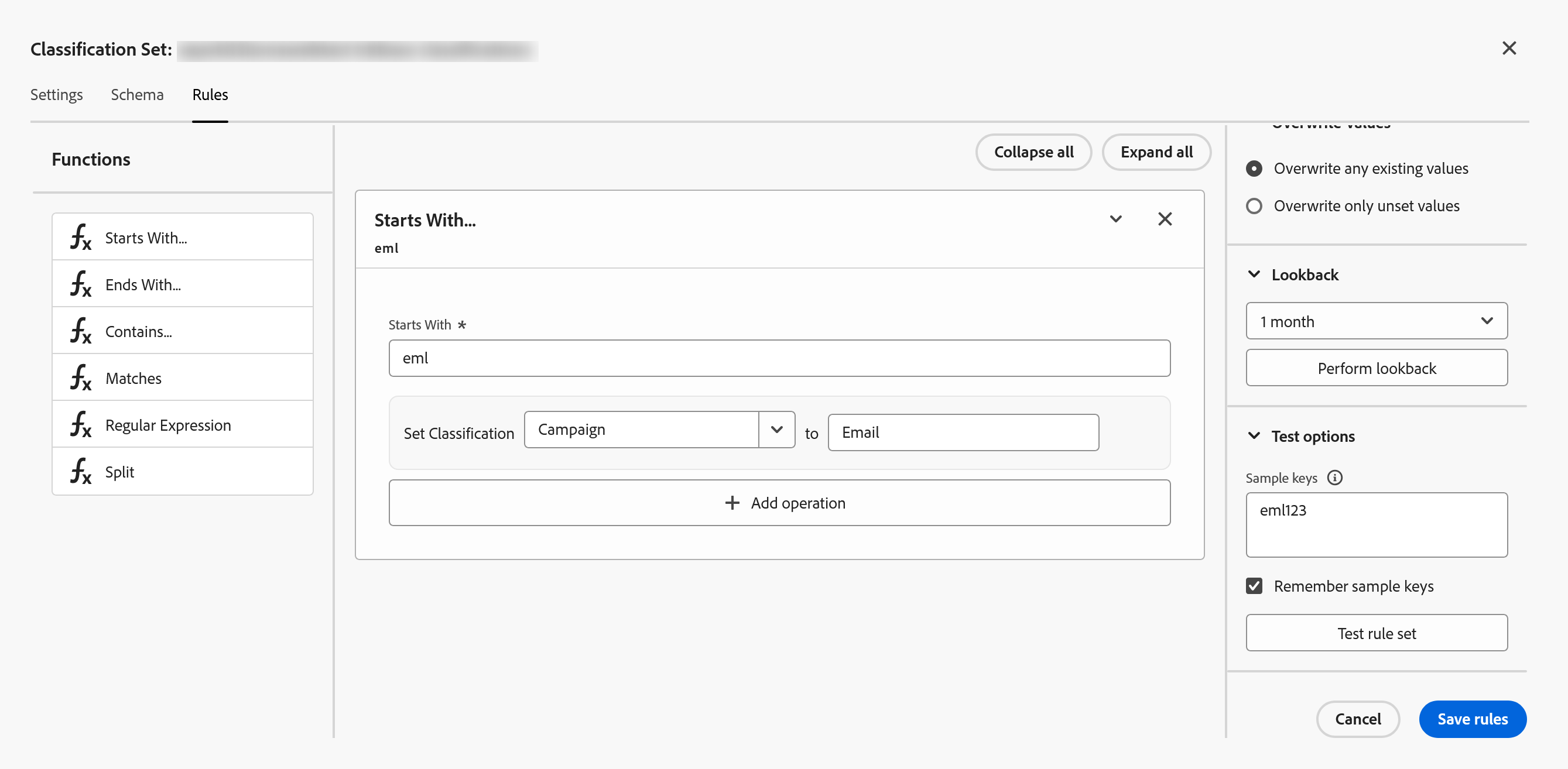
eml, set Campaign to Email. Everything deciding what that does to your data is stacked in the right-hand column. Overwrite any existing values against Overwrite only unset values is the difference between correcting history and refusing to touch it. Lookback sets how far back the rule reaches. And Test rule set, with a sample key already sitting above it, runs before you commit and costs nothing, which makes skipping it a choice rather than an oversight.The lookback window, and the limit that separates rules from files
Now the constraint that decides when rules are the wrong tool entirely, and it contradicts something you have believed since the opening of this module.
Classifications are retroactive. Upload a file today and it reaches every hit you have ever collected, back to the beginning.
Rules are not.
A rule set has a lookback window, a dropdown running from one month to six months, defaulting to roughly one. When you activate the rules, they run against every unique key seen within that window, and no further. There is a Perform lookback button to run one deliberately, and six months is the ceiling.
So a campaign that ran two years ago and has not been seen since will never be classified by a rule, no matter how perfect the pattern is. The rule looks for keys in recent traffic and finds nothing there to work with.
Which gives you the ownership rule for the whole module, and it is cleaner than most people expect:
Rules handle keys that keep arriving. New campaigns, new SKUs, new search terms, values that will still be appearing next Tuesday. They are the right answer for anything that is constantly changing, which is exactly the case that makes manual upload unbearable.
Files handle history, and anything a rule cannot see. Backfilling three years of old campaign codes is a file, and always will be. Correcting a value from 2023 is a file. If it stopped arriving before the lookback window closed, a rule cannot help you.
A mature implementation runs both. Rules keeping the present tidy, and a one-time historical file that somebody built carefully, once, and then never had to touch again.
Activating, and what activation costs
When the test looks right, activate the rule set. From that moment the four-hour cycle begins and the columns start filling on their own.
Editing later is not free. Modifying or deleting a rule deactivates the set, and reactivating triggers a reprocess that can take up to twenty-four hours. Which is not a disaster, but it is a reason to get the rules right in the tester rather than iterating live and wondering why nothing appears to be changing.
What a rule can never do for you
One last honest limit, and it is the boundary of the entire feature.
A rule can only unpack what is already inside the key. It reads, it matches, it splits. It cannot know things.
Which means the club's member attributes are permanently out of reach. No pattern in M-10482 will ever reveal a Membership Tier, because the tier is not in there. It is in a CRM, in another building, and only a file can carry it across.
Rules unpack. Files import. And a real implementation almost always needs both, on different columns, for different reasons.
You now have a set, a schema, data flowing in from a file, and rules keeping the structured columns filled automatically. Everything works.
Until one morning it does not, and nothing tells you. Which is Troubleshooting and Maintenance, and it is the section that will earn its keep.
Analytics > Components > Classification sets > [your set] > Rules. Rules apply automatically to every subscription on the set. The legacy standalone Classification Rule Builder still lives under Admin, and is on a retirement schedule.
This article focuses on the concepts, architecture, and practical guidance behind the topic. For the latest UI walkthroughs and step-by-step implementation instructions, use the links below. They leave this site and open Adobe's own documentation in a new tab.