Collect the data › Adobe Launch (Tags)
Rules
Everything in this module has been quietly building toward this section. The property gave you a container. Extensions stocked it with building blocks. Data elements gave you safe, shapeable handles on the data. The _satellite object gave the running library a presence on the page. None of those do anything on their own. They come together, and start to matter, inside rules. Ask someone what they actually do when they work in Launch, and the honest answer is that they work in rules. It is where 60 to 70 percent of the time goes, because it is where the implementation actually happens.
A rule is a single logical construct that chains all of those pieces into one outcome, and most of the time that outcome is a server call to Adobe Analytics. That is the cleanest way to hold it in your head: rules are the building blocks of the server call. A single rule can reach across several extensions in one breath, set a Target activity, fire a Meta pixel, then send an Analytics beacon whose product string was shaped by a data element from the product-string extension. The rule is the thing that makes those separate parts act as one.
A rule has three parts
There are two layers to keep straight. A rule builds a server call; and three parts build the rule. Those three parts, in the order you configure them, are events, conditions, and actions, and each answers a different question.
The event decides when the rule wakes up. The condition decides whether it is allowed to proceed. The action decides what it actually does. Those are the same event, condition, and action delegates that Extensions supplied; the rule is where you assemble them. Take the three in order.
Events: when the rule fires
The event is the first thing you configure, and it is the trigger. The Core extension alone supplies a long menu of them, but they fall into a few groups you will use constantly. The most foundational group is the page-load events, because they carry your baseline traffic.
There are four page-load events, and they always fire in a fixed order regardless of how fast the library loads:
For most implementations you only need one page-load call, and it fires on every page. That single call is what gathers the dimensions every analyst leans on: page name, channel, page type, URL, referrer, previous page, tracking code, domain, server, and more. It is also the call that your baseline metrics depend on, page views (hits), visits (sessions), and unique visitors (users), and even metrics that never appear in a rule, like bounce rate, exit rate, and average time spent, are shaped largely by it.
The usual choice for that page-load beacon is DOM Ready or Window Loaded, and which one depends on a single question: when is your data layer fully built? DOM Ready fires once the page structure is parsed; Window Loaded waits until every asset has finished. If your data layer is ready early, DOM Ready is snappier; if it populates late, Window Loaded keeps you from sending a half-empty beacon.
Page Bottom only fires once a _satellite.pageBottom() call placed in your page source runs, and it works for synchronous implementations only. Modern embed codes load asynchronously by default, where Page Bottom simply will not fire. Treat it as a leftover from the older synchronous world, not as a default. It survives mainly because so much older guidance still names it.
Page-load events handle the page itself. But you also want to capture the things a visitor does on a page that never reloads, and that is where Direct Call earns its long reputation.
Direct Call, the workhorse for actions
A direct call is how you tell Launch, in plain terms, that a specific thing just happened. It is fired from the page through the _satellite object:
_satellite.track('Internal_Search');That single call fires every rule whose event is a Direct Call listening for the identifier Internal_Search. Direct calls are the popular way to send custom link beacons for the many actions a visitor takes that do not load a new page: add to cart, file download, on-site search, a CTA click, a checkbox selection, and dozens more. The business tells you which actions matter, and for each one you place a uniquely named direct call.
The everyday workflow looks like this. Tomorrow a new search-filter feature ships. You, the analytics developer, define a direct call identifier for it, say Search_Filter, and you instruct the web developer where and how to fire it in the new feature's code. Once it is firing, you come back to Launch, create a rule, and under Events, the very first section, you choose Direct Call and enter that identifier. The page announces the action; your rule is listening for it.
Conditions: whether the rule runs
An event wakes a rule up. A condition decides whether it is allowed to go any further. Conditions are the gatekeeper, and their real value shows up when you think about scale.
Take a common request: the business wants to track clicks on the Submit button, but only on the Home page for now, and they have already warned you the scope will grow, to the Product page tomorrow, maybe the whole ecommerce funnel later. The clumsy approach is to ask the web developer to fire the direct call only on the Home page, and then go back to them every time the scope expands. That does not scale, and it makes you dependent on someone else's release cycle for every small change.
The smart approach is to ask the developer once, finally, to fire the Submit direct call on every page across the site. Then you handle the where entirely inside Launch, in the rule's Conditions section. You either use the UI to compare the page, or write a small piece of custom code: if the page is the Home page, proceed, otherwise discard. When the scope grows to the Product page, you change one condition in Launch and never touch the developer again.
That gatekeeper role is also what makes conditions essential for user consent. When a visitor grants consent to be tracked, that choice is typically stored in a cookie. A condition can read that cookie and let the rule run only when consent is present, and discard the whole operation when it is not. The rule becomes self-policing.
A condition can be set as a regular condition (the rule proceeds only if it is true) or as an exception (the rule proceeds only if it is false). The exception form saves you from writing awkward inverse logic, and reads more clearly when your intent is "everywhere except here."
Actions: what the rule does
Events and conditions decide when and whether. They do not decide what the rule actually does. That is the job of the actions, and what is available depends on the extensions you have installed and why. Staying with Adobe Analytics, the extension gives you three actions worth knowing well: Set Variables, Send Beacon, and Clear Variables.
Two of them need almost no configuration. Send Beacon is the explicit instruction to send the server call, and you choose its type: s.t() for a page view, or s.tl() for a link, where you also give the custom link a name. Clear Variables calls s.clearVars(), which wipes every variable currently set on the tracker and hands you a clean slate.
In the DTM era, creating a rule sent a beacon by default, you had little say in it. Launch separated the two: setting variables and sending the call are now distinct actions. A Set Variables action never sends anything on its own. That decoupling is what gives you the control the rest of this section is built on.
- Where
Data Collection›Tags›Club Web›Rules›Create New Rule- Name
All Pages - Library Loaded - Set and Send Analytics— that is where, then when, then what. Name it for where and when it fires; your future self is the audience.- Events (If)
- Extension
Core, Event TypeLibrary Loaded (Page Top), thenKeep Changes - Conditions
- Optional, and often empty. Leave blank to fire on every page.
- Actions (Then)
- Order matters — these run top to bottom.
- Extension
Adobe Analytics, Action TypeSet Variables:eVar1 = %Page Name%andprop1 = %Page Name%, using the data element rather than custom code - Extension
Adobe Analytics, Action TypeSend Beacon:s.t()for a page view, wheres.tl()would be a link
- Extension
- Finally
Save Rule
Set Variables, then Send Beacon. Reverse them and you send an empty hit and then set the variables into the void.
On an s.tl() beacon, give the custom link a real, descriptive name. Many people leave it blank, and then regret it. A good name is what makes the call findable later in the debugger and meaningful in your reports. A blank one is a hole in your data you cannot fill after the fact.
The third action, Set Variables, is where the real work lives. If rules are 60 to 70 percent of your time in Launch, Set Variables is 80 to 90 percent of your time inside rules. You select Adobe Analytics as the extension, and you get a clean interface to map your data elements onto Analytics variables, eVars, props, events, and the standard dimensions like page name, channel, URL, and tracking code. When the UI is not enough, the same action gives you a custom code editor with the full power of JavaScript, exactly as a data element does. There is very little you cannot do here.
If you set variables in custom code on a link beacon (an s.tl() rule, or any non-page-load call), you must also set s.linkTrackVars and s.linkTrackEvents by hand, naming every variable and event you want included, or they will not be sent. Page-load calls do not need them. When you set your variables through the Set Variables UI instead, the extension manages both lists for you, which is one more reason to stay in the interface when you can.
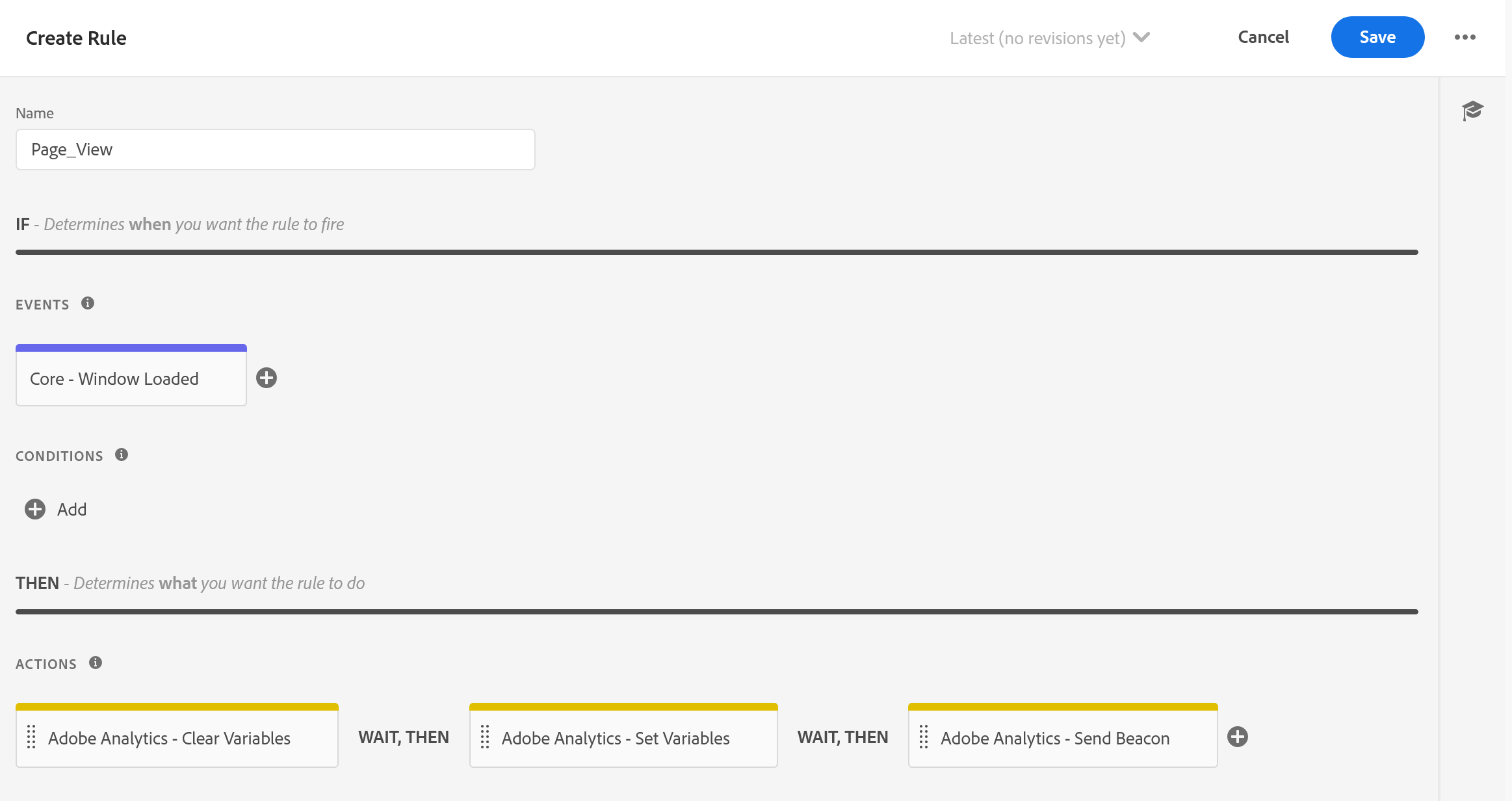
Sequence and order: making rules work together
Once a rule has actions, their order inside the rule matters, and so does the order of rules that fire on the same trigger. Get this right and several rules cooperate into one clean beacon. Get it wrong and you send garbage, or duplicate page views.
Inside a single rule, the canonical sequence is set, send, clear: set your variables, send the beacon, then clear. Clearing comes last for a reason that becomes obvious in a moment: clear too early and you erase the very work you were about to send.
Across rules, the lever is the rule order, an integer you assign. The lower the number, the earlier the rule runs; the rule with the highest number runs last. A practical convention is to leave gaps, ordering rules 1, 50, 100 rather than 1, 2, 3, so you can slot new rules between existing ones later.
Rule order has no effect across rules that fire on different events. It only sequences rules that share the same trigger. Two rules both listening for DOM Ready will respect their order relative to each other; a DOM Ready rule and a click rule have no ordering relationship at all.
The Rule Sandwich
Here is where it all pays off, and it answers a real problem. Suppose you need page-specific data on certain pages on top of your global page-load tracking. If you simply write a second page-load rule that also sends a beacon, you now send two page views on that page, inflating your traffic and distorting every report that touches it. You do not want that.
The clean solution rests on one fact, which can now be stated plainly: there is a single Analytics tracker, the s object, that persists across all the rules firing on a given page. Variables set by one rule stay on it and accumulate, until something clears them or the page unloads. So you do not need two beacons. You let several rules set variables onto that one shared object, and let only the last rule actually send it. Practitioners call this stacking the Rule Sandwich.
The low-order rule sets variables and stops, no beacon. The next rule adds its own variables and stops. The final, highest-order rule sends the beacon, which carries everything accumulated on the shared tracker, then clears. The result is exactly one page view that contains variables contributed by several rules, each scoped to its own concern. This is how a scalable implementation avoids repeating itself, set a variable in one place, let it ride into the right beacon.
The sandwich has one classic failure. If the final rule clears variables before it sends, or starts with a clear, it wipes everything the earlier rules set, and the beacon goes out nearly empty. Clear only after the beacon has been sent. Watch repeated variables too: if two rules set the same variable, the later rule wins, so the last value on the shared object is the one that ships.
There is a second way the sandwich comes apart, and it is harder to catch because most of the time it works. Rule order decides when each rule starts. It does not hold the next rule back until the previous one has finished.
A rule that sets its variables synchronously is safe, because it is done before it hands control on. A rule whose custom code fetches something, waits on a promise, or sets a timeout returns immediately and finishes later. The next rule in the order runs inside that gap, and the beacon leaves without the variable the earlier rule was still in the middle of setting.
This passes every manual test, because on a warm cache and a fast connection the slow thing returns before the beacon rule runs and the data is correct. It fails on the connections nobody tests, for a fraction of visitors, producing a variable that is populated most of the time and empty the rest. Nothing errors and nothing is logged. The fix is not a higher order number. Either have the value ready before the sandwich starts, through a data element or an earlier event, or let whatever finishes the work fire the beacon itself through a direct call, so the send is caused by the data arriving rather than scheduled alongside it.
One related setting is worth knowing so you do not reach for it here. Run rule components in sequence, in the property's advanced settings, makes the conditions and actions inside a single rule wait for each other. It says nothing about the order of separate rules, so it does not solve the case above.
The Adobe Analytics extension has a built-in global variables section, and it is tempting to set page name and site section there. The catch is that it evaluates only once, when the tracker is first created on page load, and the values do not survive a clearVars. Many experienced implementers skip it and instead use a dedicated order-1 "set global variables" rule that fires on every relevant trigger. You keep one place for your universal variables, and they behave predictably with the rest of the sandwich.
That is the rule, from its three parts to the way several of them cooperate into a single, clean server call. Everything earlier in this module was preparation for this assembly. What remains is getting your work safely off your screen and onto the live site, which is the Publishing Workflow.
Inside a property, open Rules, then Add Rule. Each rule is built in the order Events → Conditions → Actions.
This article focuses on the concepts, architecture, and practical guidance behind the topic. For the latest UI walkthroughs and step-by-step implementation instructions, use the links below. They leave this site and open Adobe's own documentation in a new tab.